

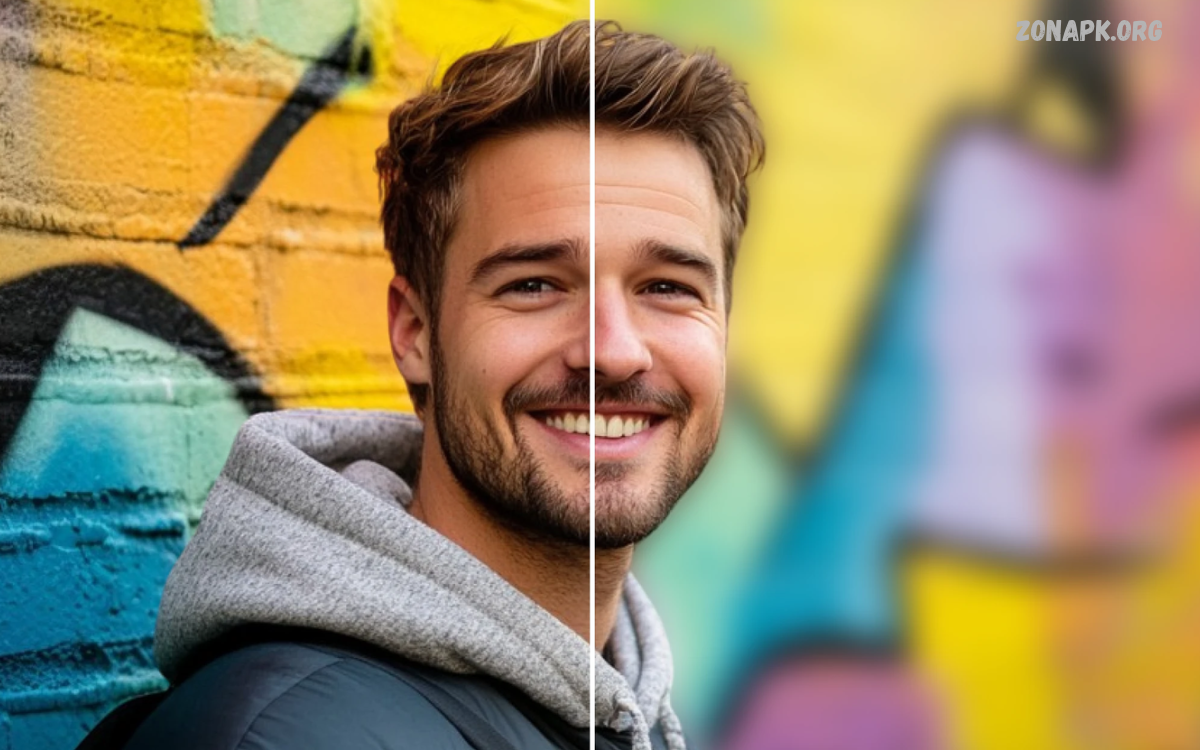
Blur photo background apps help users create attractive pictures by keeping the main subject sharp while softening distracting surroundings. These tools are useful for selfies, portraits, product photography, profile pictures, and social media content.
The best blur photo background apps offer adjustable blur strength, automatic subject detection, manual brushes, and natural-looking effects. Some apps focus on simple edits, while others include color correction, filters, lighting adjustments, and creative design tools.
Why Background Blur Makes Photos Look Professional.
Background blur separates the main subject from surrounding objects. This effect, often associated with shallow depth of field and bokeh, helps viewers focus on a person’s face, a product, or another important detail.
A well-adjusted blur can reduce distractions from crowded streets, untidy rooms, busy walls, and unwanted objects. However, stronger blur does not always mean better results. Natural transitions, accurate subject edges, and balanced lighting usually produce more convincing photos than excessive blur.
Snapseed for Natural Background Blur
Snapseed is a popular option for people who want to improve photographs without using a complicated editing workflow. Its Lens Blur tool can keep the subject sharp while softening the surroundings, and other tools let you adjust brightness, contrast, color, and detail. It is particularly useful for users who prefer careful adjustments over relying entirely on automatic effects.
To create a natural result, open a photograph, select Lens Blur, position the focus area over the main subject, and adjust the blur strength and transition. Review the edges around hair, clothing, and nearby objects before saving the finished image. Snapseed is a useful starting point for everyday portrait editing, although its manual approach may require extra time for complex backgrounds. CyberLink+1
Picsart for Creative Photo Background Effects
Picsart combines photo editing with creative effects, stickers, filters, and design features. Its background editing tools can help users produce eye-catching portraits for profile pictures, posts, thumbnails, and other digital content. Depending on the current version and available plan, automatic selection and additional editing features may also be available.
Picsart is suitable for users who want more than a simple blur effect. After softening the background, you can adjust colors, improve lighting, add text, or create a themed design. For the best results, keep the subject recognizable and avoid combining too many effects. Some features may require payment, so check the current app listing and export options before starting a large project. CyberLink+1
PhotoDirector for Quick Background Blurring
PhotoDirector is designed for users who want a convenient way to improve photographs using automated and manual editing tools. Its background blur features can identify a main subject and soften surrounding areas, reducing the need to trace every edge manually. The app also provides additional creative editing options for users who want to refine the complete photograph.
For a portrait, begin with a clear image, apply the background blur effect, and inspect how the app handles hair, shoulders, and objects near the subject. Adjust the intensity until the background appears soft without looking artificial. PhotoDirector may suit beginners and social media creators, but available tools, pricing, and export restrictions can vary by platform and app version. CyberLink+1
Adobe Lightroom for Controlled Background Blur
Adobe Lightroom is useful for photographers who want background adjustments alongside exposure, color, contrast, and other image improvements. Depending on the version and supported features, masking and Lens Blur tools can help create depth while preserving the important details of a portrait. Its broader editing controls also make it suitable for preparing photographs for websites and professional profiles.
For a balanced effect, begin with the subject and lighting, then adjust blur and refine the image as needed. Avoid making the subject unnaturally sharp against an extremely soft background, particularly when the original photograph has a deep-focus appearance. Lightroom offers more control than many basic blur editors, but some advanced features may require a subscription or compatible version. iTechGuides+1
Fotor for Simple Background Editing
Fotor provides photo enhancement and background editing features through its supported editing tools. It can be useful when you want to soften a distracting scene while retaining the main subject. Depending on the current version, its workflow may include automatic background selection and adjustable blur controls, making it approachable for casual photography.
Fotor is worth considering for profile photos, portraits, and simple creative projects. Upload or open a suitable image, select the relevant blur feature, and adjust the effect gradually while checking the subject’s outline. Before relying on a particular feature, review its current availability, image export quality, and free-plan limits. A good result should preserve facial details and avoid visible blur patches around the edges. Filmora+1
Canva for Portraits and Social Media Designs
Canva is useful for people who want to combine photo editing with graphic design. Its editing options can help users create polished social media posts, banners, thumbnails, invitations, and profile graphics. Background blur availability depends on the current editor and feature access, so check the tools offered for your selected image and plan.
Canva works especially well when a blurred photograph needs additional design elements. You can place a portrait inside a layout, add a heading, select complementary colors, and prepare the finished graphic for different platforms. Keep text readable and the subject easy to recognize. For a single portrait that requires precise depth effects, a dedicated photo editor may provide more detailed control. Filmora+1
Google Photos for Convenient Portrait Editing
Google Photos can be a convenient choice for users who already store photographs on their phones. Supported devices, images, and app versions may offer portrait blur or similar editing controls. These built-in options can reduce the need to install another application for a straightforward background effect.
Open a supported photograph in the editor and look for the available blur or portrait adjustment. If the feature appears, adjust the intensity gradually and compare the result with the original. Not every device or image supports the same editing options, so availability can differ.
AfterFocus for Subject Separation
AfterFocus is another option for people who want to separate a foreground subject from the background. Its editing approach combines selection tools with blur effects, helping users create a portrait-style appearance from photographs that were not originally captured in portrait mode. Availability and features should be checked for the device being used.
After opening a photograph, identify the main subject and mark the areas that should remain sharp. Review the selection around hair, glasses, clothing, and other fine details before applying the effect. Subject separation matters most when the background contains objects with colors similar to the subject.
How to Choose the Best Blur Photo Background Apps
The right app depends on your photography goals, device compatibility, editing skills, and budget. Beginners may prefer automatic background detection, while experienced users might value brushes, masks, depth controls, and adjustable blur transitions.
Image quality and export options also deserve attention. Some apps lock advanced effects, high-resolution exports, and other useful features behind paid plans. Check recent reviews, supported devices, privacy information, and subscription terms before installing an editor.
Read Also: Best Selfie Editing Apps: for Stunning Photos
How to Blur a Photo Background on Android or iPhone
Start by choosing a photograph with a clearly visible subject and enough detail to distinguish it from the surroundings. Open the image in your selected editor and find its background blur, Lens Blur, portrait effect, or equivalent tool.
Adjust the blur gradually until the background becomes softer while the subject remains clear. Correct any visible mistakes around hair, fingers, clothing, or objects near the edges. Compare the edited photograph with the original, then save a copy at a suitable resolution.
Tips for Creating Natural Background Blur
Natural-looking blur begins with the right balance between subject clarity and background softness. A subtle effect often works better than maximum intensity, particularly for everyday portraits, family photographs, and professional profile images.
Lighting and subject placement also shape the final look. Photographs with clear separation between the subject and surroundings are often easier to edit successfully. Zoom in to inspect fine details, but remember to review the complete image before exporting it.
Common Background Blur Editing Mistakes
One common mistake is applying too much blur, which can make a photograph look artificial or remove useful environmental details. Another is not checking the selection around fine edges. Loose hair, transparent glasses, plants, and overlapping objects can confuse automatic detection, leaving noticeable outlines or blurred parts of the main subject.
Poor image quality can also limit editing results. A small, dark, or heavily compressed photo may lack enough detail for clean subject separation. Avoid repeatedly exporting the same image because additional compression can reduce quality. Instead, work from the original file, make careful adjustments, and save the final version at the best practical resolution.
Benefits of Using Blur Photo Background Apps
Blur photo background apps make creative photography more accessible to smartphone users rather than those with dedicated cameras. They can help transform casual portraits into polished images for personal profiles, digital portfolios, online shops, and social media posts. Automatic tools save time, while manual controls give users greater flexibility when a photograph needs individual attention.
These applications can also support product photography by reducing distractions around an item. A softly blurred background can direct attention toward a product’s shape, color, and details without requiring a completely different setting. Results still depend on the original photograph and the editing tool, so review each image carefully before using it for business, promotional, or personal purposes.
Privacy and Safety When Editing Photos
Before uploading personal photographs to an editing service, review its privacy policy and understand how images are processed, stored, and deleted. Some tools work directly on a device, while others may upload images to online servers for processing.
Install an editor from official app stores or the developer’s verified website. Review subscription details and avoid applications that request unnecessary personal information or permissions unrelated to photo editing.
Frequently Asked Questions
Which app is best for blurring photo backgrounds?
Snapseed is worth considering for free manual editing, Picsart for creative effects, and PhotoDirector for convenient background selection. Lightroom may suit users seeking more detailed adjustments. The best choice depends on your device, preferred workflow, and the features each app currently offers.
Can I blur a photo background for free?
Yes, some apps offer free background blur tools. Snapseed is a useful option to explore, while other editors may provide selected blur features without charge. Check current pricing and export restrictions because premium tools, subscriptions, and free-plan limits can change.
Can I blur a background after taking a picture?
Yes. Many photo editors can blur an existing photograph, even if the original image wasn’t captured in portrait mode. Results depend on subject separation, image quality, and the app’s ability to identify the background accurately.
Do blur photo background apps work on Android and iPhone?
Many popular editors, including Snapseed, Picsart, Lightroom, and Fotor, support mobile devices across major platforms. However, individual features may differ between Android and iOS versions. Check the official app listing to confirm your device is compatible.
How can I make background blur look realistic?
Use moderate blur, maintain sharp subject details, and carefully inspect the edges around hair and clothing. Choose photographs with clear subject separation and adjust the effect gradually. A smooth transition between sharp and soft areas usually looks more natural.
Are background blur apps suitable for product photography?
Yes. Background blur can help highlight products such as accessories, clothing, crafts, and everyday items. Keep key product details sharp, use balanced lighting, and make sure the effect doesn’t hide features customers need to see.
Can I blur only part of a photo?
Many editors provide brushes, selection tools, or adjustable focus areas for targeted editing. These controls let you blur the surroundings while keeping other details sharp. The available precision depends on the app and the complexity of the photo.
Conclusion
Blur photo background apps offer a convenient way to improve portraits, selfies, product images, and social media photographs. Options such as Snapseed, Picsart, PhotoDirector, Lightroom, Fotor, Canva, and Google Photos support different editing needs, from simple blur effects to more detailed image adjustments.
Choose an app that matches your device and preferred editing style, then focus on natural results rather than maximum blur. Careful subject selection, balanced effects, and high-quality exports can turn ordinary photographs into polished images without looking artificial.
