
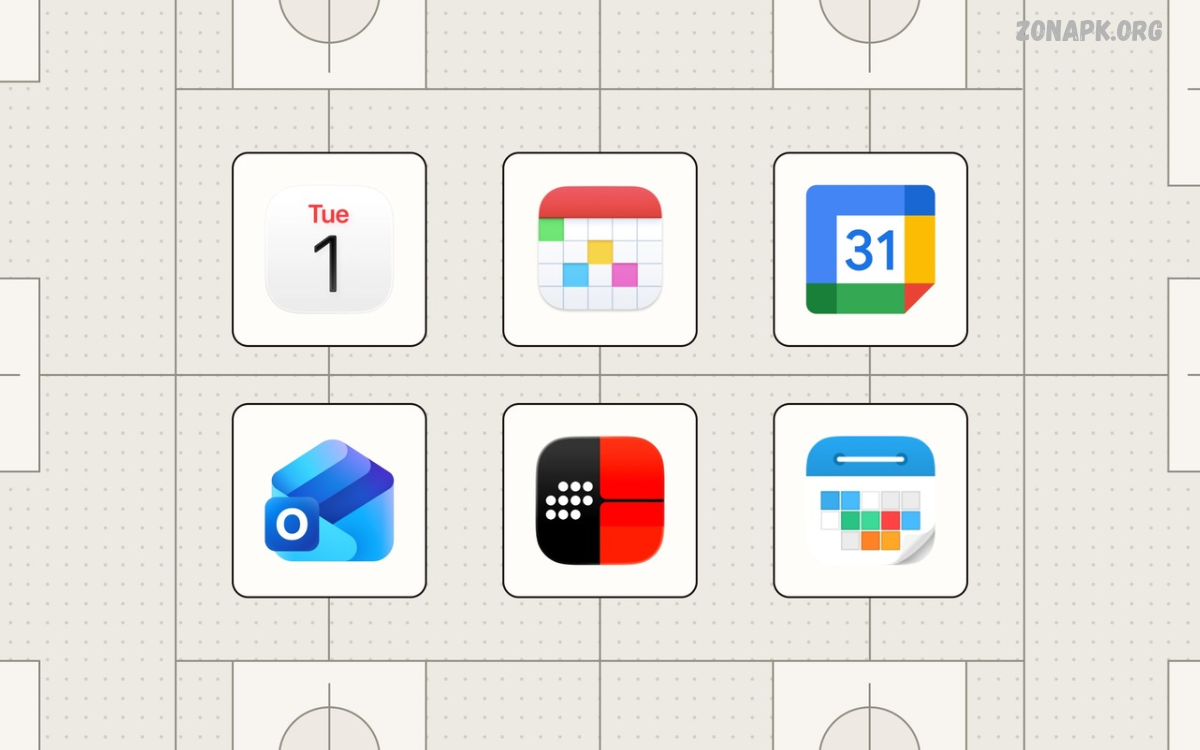
The Best Calendar Apps help users organize daily schedules, remember important events, and manage personal or professional commitments. These apps provide digital calendars, reminders, meeting schedules, and planning tools that make everyday life easier.
Whether you are a student, professional, freelancer, or business owner, choosing the right calendar app can improve time management. Modern calendar applications offer smart notifications, recurring events, shared calendars, and integrations that help users stay organized.
What Are Calendar Apps?
Calendar apps are digital tools designed to help users plan their time, schedule appointments, and track important dates. They replace traditional paper calendars with convenient features accessible through smartphones, tablets, and computers.
Most calendar applications allow users to create events, set reminders, organize meetings, and view upcoming activities. Some advanced options also include task management, scheduling assistants, time tracking, and collaboration features.
Why Are the Best Calendar Apps Important?
The Best Calendar Apps make it easier to manage busy routines without forgetting appointments or deadlines. Users can organize their day, receive timely notifications, and maintain a clear overview of upcoming responsibilities.
Digital calendars also help reduce scheduling conflicts and improve productivity. By keeping personal activities, work meetings, study sessions, and special occasions in one organized place, users can manage their time more effectively.
Google Calendar
Google Calendar is one of the most popular calendar applications for Android, iPhone, and desktop users. It offers event scheduling, customizable reminders, recurring appointments, and calendar sharing through a simple interface.
The app works especially well with Gmail, Google Meet, and other Google services. Users can automatically identify certain events from supported emails, create meeting invitations, and access their schedules across multiple devices.
Google Calendar Features
Google Calendar provides daily, weekly, monthly, and yearly views to help users understand their schedules. Color-coded events make it easier to separate work appointments, personal activities, holidays, and study sessions.
Users can create recurring events, invite participants, and receive notifications before important activities. Integration with Google Tasks also helps users manage to-do lists alongside their calendar events.
Who Should Use Google Calendar?
Google Calendar is suitable for students, professionals, families, and individuals who want a reliable scheduling tool. Its straightforward interface makes it useful for beginners as well as people managing complicated weekly routines.
Users who already rely on Gmail, Google Drive, and Google Meet may find it particularly convenient. The app is available across major platforms, although some features depend on the device, account, and connected services.
Apple Calendar
Apple Calendar is a convenient option for people who use iPhones, iPads, Macs, and other compatible Apple devices. It supports event creation, reminders, recurring schedules, invitations, and synchronization through supported calendar accounts.
The application integrates with the Apple ecosystem and can display calendars from compatible services. Users can organize personal events, work meetings, birthdays, and appointments without needing a separate calendar application.
Apple Calendar Features
Apple Calendar supports multiple calendars, event alerts, travel-time information in supported situations, and different viewing options. Users can assign colors to calendars and manage several schedules through a single interface.
The app can synchronize information through iCloud and compatible accounts. This allows users to access supported events across their Apple devices while keeping their schedules organized and updated.
Who Should Use Apple Calendar?
Apple Calendar is a strong choice for people who prefer Apple’s built-in applications. It offers a convenient experience for users who want calendar management without installing additional software.
It is particularly useful for organizing family activities, personal appointments, and professional meetings. However, users who frequently switch between different operating systems may prefer a calendar service with broader cross-platform support.
Microsoft Outlook Calendar
Microsoft Outlook Calendar combines scheduling features with email and productivity tools. It is especially useful for professionals, office workers, and organizations that depend on Microsoft 365 applications.
Users can schedule meetings, invite colleagues, manage recurring appointments, and review upcoming events. Outlook Calendar works closely with Outlook email and can integrate with Microsoft Teams for supported online meetings.
Microsoft Outlook Calendar Features
Outlook Calendar provides meeting invitations, availability information, reminders, and shared calendar functionality. These tools help teams coordinate schedules and reduce confusion when planning group activities.
The application also supports multiple calendars and different viewing options. Depending on the account and subscription, users may receive additional organizational features through Microsoft 365 services.
Who Should Use Outlook Calendar?
Outlook Calendar is ideal for people who manage professional communication and meetings through Microsoft Outlook. Employees, students using Microsoft accounts, and business teams can benefit from its connected productivity environment.
It may be less convenient for users who want only a lightweight personal calendar. However, its combination of email, scheduling, and collaboration tools makes it a practical choice for busy professional routines.
Calendly
Calendly is a scheduling platform designed to simplify appointment booking. Instead of exchanging multiple messages to find a suitable meeting time, users can share their availability and allow others to select an available slot.
The platform is useful for consultants, freelancers, educators, recruiters, and business professionals. It can connect with supported calendars to help prevent double-booking and organize appointments more efficiently.
Calendly Features
Calendly allows users to create booking pages, define available time slots, and set meeting durations. Depending on the plan, users can also configure scheduling rules, automated notifications, and different appointment types.
Integration with supported video conferencing platforms can simplify online meetings. Some advanced scheduling and team-management features require a paid subscription, so users should review the available plans before choosing.
Who Should Use Calendly?
Calendly is useful for people who regularly arrange appointments with clients, colleagues, or students. It reduces the administrative work involved in finding meeting times and coordinating schedules.
It is not necessarily the best choice for someone who only needs a basic personal calendar. Instead, it works particularly well alongside a primary calendar application for appointment booking and professional scheduling.
Any.do Calendar
Any.do combines task management, reminders, and calendar planning in one productivity application. It helps users organize daily responsibilities while maintaining an overview of appointments and deadlines.
The platform is useful for individuals who want to connect their to-do lists with their schedules. Instead of managing separate tools for tasks and events, users can bring supported planning activities together.
Any.do Features
Any.do offers task creation, reminders, recurring tasks, and calendar-related planning features. Users can organize responsibilities into lists and use notifications to remember important activities throughout the day.
Feature availability can vary by platform and subscription. Some integrations and advanced productivity tools may require a premium plan, making it important to compare the available options before subscribing.
Who Should Use Any.do?
Any.do suits users who frequently balance appointments with personal tasks. Students can organize assignments, while professionals can track deadlines and daily responsibilities alongside their meetings.
People who prefer a simple, combined planning system may find it more useful than a calendar focused exclusively on events. However, users with complex business scheduling requirements may need more specialized tools.
Todoist Calendar Integration
Todoist is primarily a task-management application, but its calendar-related features and integrations can help users connect responsibilities with their schedules. It is particularly useful for planning projects, tracking deadlines, and organizing daily priorities.
Users can create tasks, assign due dates, establish recurring activities, and organize projects into categories. When connected to compatible calendar services, Todoist can help users understand how their tasks fit into their available time.
Todoist Features
Todoist supports task lists, project organization, priorities, reminders on supported plans, and recurring due dates. Its clean interface makes it easier to break larger projects into manageable activities.
Calendar integrations can provide additional scheduling context, depending on the platform and subscription. Users should distinguish between task deadlines and actual calendar events when organizing their time.
Who Should Use Todoist?
Todoist is suitable for students, freelancers, and professionals who need structured task management. It works well for people who want to organize projects while using another application for appointments and meetings.
Users who mainly need event invitations, shared family calendars, or meeting-room scheduling may prefer a dedicated calendar app. Todoist is most effective when task organization is a central part of the user’s daily routine.
Fantastical
Fantastical is a calendar application known for its polished interface and natural-language event creation. It helps users manage appointments, reminders, and schedules through a streamlined planning experience.
The application is particularly associated with Apple devices and offers tools for people who want more advanced calendar management. Some capabilities, integrations, and premium features depend on the platform and subscription.
Fantastical Features
Fantastical supports multiple calendar accounts, calendar views, reminders, and natural-language input for creating events. Users can enter an event in everyday language, and the application can interpret details such as dates and times.
Its interface provides a convenient overview of upcoming activities. Depending on the plan, users may also access additional scheduling features and integrations designed to support more demanding workflows.
Who Should Use Fantastical?
Fantastical may suit professionals, freelancers, and Apple users who want a more feature-rich calendar experience. Its scheduling tools can help people manage several calendars without constantly switching between separate applications.
However, users should review subscription costs and device compatibility before adopting it. People who need only basic event scheduling may find a free built-in calendar sufficient.
Proton Calendar
Proton Calendar focuses on privacy-oriented scheduling and encrypted calendar information. It is designed for users who want to manage their appointments while placing particular importance on protecting personal information.
The service supports event organization, reminders, and calendar sharing features, depending on the account and platform. Its privacy-focused approach makes it an alternative for people who prefer services built around data protection.
Proton Calendar Features
Proton Calendar provides tools for creating events, managing schedules, and organizing appointments across supported devices. Its ecosystem also includes other privacy-oriented services, allowing users to consider a more integrated approach to digital privacy.
Some functions depend on account type and platform support. Users should review the current documentation to understand sharing options, integrations, and limitations before moving their existing calendars.
Who Should Use Proton Calendar?
Proton Calendar may appeal to privacy-conscious individuals, journalists, professionals, and everyday users who want greater control over their digital information. It can also suit people who already use other Proton services.
Those who depend on extensive third-party integrations should check compatibility carefully. The best calendar should balance privacy preferences with the scheduling tools needed for everyday work.
Business Calendar
Business Calendar is a calendar application aimed at users who want detailed control over their schedules. It provides organizational features that can help people manage appointments, recurring activities, and multiple calendars.
Its interface offers several ways to view upcoming events, helping users plan their time in greater detail. Available features and integrations may differ between versions and operating systems.
Business Calendar Features
Business Calendar offers calendar views, event management, reminders, and customization options. Users can organize events visually and adjust their calendar display to suit their planning preferences.
Depending on the version, users may also access widgets, advanced event settings, and additional customization features. These tools can make it easier to review schedules without opening the full application every time.
Who Should Use Business Calendar?
Business Calendar may suit Android users who want greater scheduling flexibility than a basic calendar provides. It can be useful for managing work appointments, personal commitments, and recurring activities.
Before installing it, users should review the current app listing, supported account types, and available features. People who need seamless synchronization across different operating systems may prefer a service with broader cross-platform support.
TimeTree
TimeTree is a shared calendar application designed to help people coordinate schedules with family members, friends, partners, and groups. It makes collaborative planning easier by allowing multiple participants to view and manage shared events.
The app can help households organize appointments, families coordinate school activities, and groups plan social occasions. Shared scheduling reduces the need to repeatedly message others about event dates and times.
TimeTree Features
TimeTree supports shared calendars, event details, reminders, and communication around scheduled activities. Participants can use a common calendar to keep track of plans and review updates.
Users can create separate calendars for different groups or purposes, depending on the available features. This structure can help separate household responsibilities, social plans, and other shared commitments.
Who Should Use TimeTree?
TimeTree is useful for families, roommates, friends, and groups that frequently coordinate activities. It offers a practical way to keep everyone informed about important dates and shared responsibilities.
Individuals who mainly manage personal appointments may not need its collaborative features. However, people who often arrange group activities can benefit from having a shared scheduling space.
Zoho Calendar
Zoho Calendar is a scheduling service designed for personal and professional use. It provides tools for creating events, organizing calendars, sharing schedules, and coordinating meetings within supported Zoho services.
The platform can be useful for individuals and organizations that already use Zoho’s productivity applications. Its calendar functionality supports everyday scheduling while providing options for collaborative work.
Zoho Calendar Features
Zoho Calendar includes event creation, reminders, recurring appointments, calendar sharing, and meeting organization. Users can maintain separate calendars for different responsibilities and manage their schedules from supported devices.
Integration with other Zoho services can make it easier for businesses to coordinate work. Availability and functionality may depend on the account, subscription, and connected applications.
Who Should Use Zoho Calendar?
Zoho Calendar may suit small businesses, freelancers, and teams that use Zoho’s business tools. It can support appointment planning without requiring every user to adopt a separate scheduling platform.
Individuals who already depend on Google Workspace or Microsoft 365 should compare integration options before switching. The best choice depends on the tools already used by a team and its collaboration requirements.
How to Choose the Best Calendar Apps
Choosing the Best Calendar Apps starts with understanding your daily planning needs. Consider whether you mainly schedule personal appointments, organize schoolwork, manage business meetings, coordinate family activities, or combine several responsibilities.
Next, compare ease of use, device compatibility, reminders, synchronization, privacy, and sharing features. A calendar should simplify your routine, not add unnecessary steps or force you to maintain several disconnected schedules.
Check Device Compatibility
Before installing a calendar application, confirm that it supports your primary devices. Android users may prefer applications with useful home-screen widgets, while iPhone and Mac users may value smooth integration with Apple services.
People who switch between Windows computers, Android phones, and Apple devices should prioritize cross-platform synchronization. A calendar that works consistently across all essential devices can prevent missed updates and scheduling confusion.
Read Also: Best To Do List Apps: Organize Tasks, Manage Time, Boost Productivity
Compare Free and Paid Features
Many calendar applications offer free versions with essential event scheduling and reminders. These features may be enough for students, casual users, and people who manage relatively simple schedules.
Paid subscriptions can provide additional integrations, advanced booking tools, team features, or enhanced customization. Review the pricing and limitations before subscribing, especially when a premium feature is essential to your daily workflow.
Essential Features to Look For in Calendar Apps
A good calendar application should provide reliable event creation, useful reminders, and a clear overview of upcoming activities. These basic features help users maintain an organized schedule without spending too much time managing the application.
Advanced features can improve the experience for people with demanding routines. Shared calendars, multiple calendar accounts, recurring events, natural-language input, and integration with task-management tools can make scheduling more flexible.
Smart Reminders and Notifications
Reminders help users prepare for appointments, meetings, examinations, and important deadlines. Applications may allow notifications at different intervals, giving users enough time to organize their activities before an event begins.
However, too many notifications can become distracting. Choose a calendar that lets you customize alerts so important events receive attention without filling your device with unnecessary reminders.
Calendar Sharing and Collaboration
Shared calendars allow families, colleagues, and project teams to coordinate their schedules. Participants can review upcoming events, check availability, and make plans without repeatedly exchanging messages.
When selecting a shared calendar, review permission settings and privacy controls. Some users may need editing access, while others only need permission to view events and meeting details.
Synchronization Across Devices
Synchronization keeps calendar information consistent across supported smartphones, tablets, and computers. It helps users create an event on one device and review it elsewhere without manually copying details.
Before relying on synchronization, check account compatibility and internet requirements. Some applications support offline access, but updates may not appear on other devices until an internet connection becomes available.
Best Calendar Apps for Students
Students need calendars that help organize classes, assignment deadlines, examination dates, extracurricular activities, and study sessions. Google Calendar, Apple Calendar, and Outlook Calendar can all support these responsibilities through event scheduling and reminders.
Students who need more structured task planning can also consider Any.do or Todoist alongside a dedicated calendar. Combining tasks with scheduled study sessions can help students understand their workload and avoid overlooking important deadlines.
Organizing Classes and Assignments
Create separate calendars for classes, examinations, personal commitments, and extracurricular activities. Assigning different colors can make the weekly schedule easier to understand at a glance.
Add assignment deadlines as events or tasks, and set reminders before important dates. Reviewing the upcoming week regularly can help students identify busy periods and distribute their study responsibilities more effectively.
Best Calendar Apps for Business and Work
Professionals often need calendar applications that support meetings, team coordination, recurring appointments, and communication tools. Microsoft Outlook Calendar, Google Calendar, and Zoho Calendar are useful options depending on the workplace’s existing software.
Calendly can complement these applications when external clients need to book appointments. Businesses should also consider administrative controls, shared calendars, account management, and integration requirements before choosing a scheduling platform.
Managing Meetings Efficiently
Include the meeting title, date, time, participants, and relevant notes when creating work appointments. Adding a video conference link or location can reduce confusion and help participants prepare in advance.
Use availability information and scheduling tools to identify suitable meeting times. For recurring meetings, periodically review the schedule to remove outdated appointments and protect time for focused work.
Best Calendar Apps for Families
Families can benefit from shared calendars that organize school events, medical appointments, household responsibilities, holidays, and social activities. TimeTree and Google Calendar are potential choices for coordinating schedules among multiple family members.
A shared calendar works best when everyone understands how it should be used. Establish simple naming conventions, assign colors to different activities, and decide who can edit or manage each calendar.
Planning Family Activities
Add family events as soon as dates are confirmed, and include practical details such as locations and preparation notes. Reminders can help family members remember appointments and plan transportation or other arrangements.
Separate calendars may be useful for school schedules, household tasks, and family outings. Keep the arrangement simple enough that everyone can find essential information without searching through unrelated events.
Calendar Apps and Privacy
Calendar applications may contain sensitive information, including work meetings, travel plans, personal appointments, and contact details. Reviewing privacy settings is important when deciding which service should manage this information.
Check account security, sharing permissions, data-handling policies, and synchronization settings before adding sensitive events. Privacy-focused services may be suitable for users with stricter requirements, while other users may prioritize integrations and convenience.
Protecting Calendar Information
Use a strong, unique password and enable multifactor authentication when supported. Review shared calendars regularly and remove access for people who no longer need to see your schedule.
Avoid placing unnecessary confidential details in event titles or descriptions. For work-related calendars, follow your organization’s security policies and use approved applications for sensitive meetings.
Tips for Getting More from the Best Calendar Apps
The Best Calendar Apps become more useful when users maintain consistent planning habits. Enter important events promptly, keep recurring schedules updated, and review upcoming activities at the beginning or end of each day.
Avoid creating unnecessary calendars or setting excessive reminders. A simple structure with clear event names, useful notifications, and regular reviews can make calendar management easier to maintain over time.
Create a Daily Planning Routine
Spend a few minutes reviewing your schedule each morning. Identify important appointments, prepare for upcoming deadlines, and adjust your plans when new responsibilities appear.
At the end of the day, review unfinished tasks and check the following day’s events. This routine can help you begin each morning with a clearer understanding of your priorities.
Use Time Blocking
Time blocking involves reserving specific periods for activities such as studying, exercise, project work, or personal responsibilities. Adding these blocks to a calendar helps users see how much time is available for different commitments.
Leave some flexibility between demanding activities and appointments. A realistic schedule should account for travel, preparation, breaks, and unexpected changes rather than filling every available minute.
Common Mistakes to Avoid When Using Calendar Apps
One common mistake is adding events without setting appropriate reminders. Important appointments can become easy to overlook when notifications are disabled or scheduled too close to the event.
Another problem is maintaining several calendars without synchronizing them properly. Choose a consistent primary calendar, review connected accounts, and remove duplicate events to reduce confusion.
Avoid Overloading Your Schedule
Adding too many activities to a single day can make your schedule difficult to follow. Prioritize essential commitments and allow enough time for each task, including preparation and breaks.
Use your calendar as a planning tool rather than a list of every possible activity. A manageable schedule provides room for unexpected responsibilities and makes it easier to maintain consistent habits.
Future Trends in Calendar Apps
Calendar applications continue to develop through automation, smarter scheduling tools, and improved integration with productivity platforms. These developments aim to reduce manual work and help users organize complex schedules more conveniently.
Artificial intelligence may assist with tasks such as identifying scheduling conflicts, summarizing meeting information, and suggesting suitable times. The availability of these capabilities varies, and users should review privacy settings before enabling features that process personal information.
AI-Powered Scheduling
AI-powered tools can help users organize meeting requests, interpret scheduling information, and automate certain repetitive tasks. When integrated with compatible services, these tools may reduce the effort required to coordinate appointments.
However, automated suggestions should be reviewed before accepting important changes. Users should confirm dates, time zones, participants, and privacy settings to ensure that scheduling decisions remain accurate.
Frequently Asked Questions
What Are the Best Calendar Apps for Everyday Use?
Google Calendar, Apple Calendar, and Microsoft Outlook Calendar are strong choices for everyday scheduling. The right option depends on your device, existing accounts, preferred features, and collaboration needs.
Which Calendar App Is Best for Android?
Google Calendar is a practical starting point for most Android users because it supports event scheduling, reminders, recurring appointments, and synchronization. Business Calendar is another option for users who want additional customization.
Which Calendar App Is Best for iPhone?
Apple Calendar is a convenient choice for iPhone users who prefer built-in applications and iCloud synchronization. Google Calendar and Outlook Calendar are alternatives for people who need access to schedules connected to other services.
Are Calendar Apps Free?
Many calendar applications provide free versions with essential scheduling features. Users can typically create events, manage appointments, and receive reminders without purchasing a subscription.
Can I Use Multiple Calendar Apps Together?
Yes, some users combine a primary calendar with a task manager or appointment-booking service. For example, a calendar can manage events while a task application organizes projects and recurring responsibilities.
Which Calendar App Is Best for Privacy?
Proton Calendar is an option for users who prioritize privacy-focused scheduling. However, the best app depends on your security needs, sharing requirements, integrations, and the information you store in your calendar.
How Can Calendar Apps Improve Productivity?
Calendar apps improve productivity by organizing appointments, reminding users about deadlines, and providing a clear overview of available time. They can also help users plan study sessions, work periods, and personal activities.
Conclusion
The Best Calendar Apps help users organize their time, manage appointments, and maintain better control over daily responsibilities.
The ideal application depends on your devices, privacy preferences, work requirements, and preferred planning style. Compare available features, start with a simple schedule, and build consistent calendar habits to make everyday planning more effective.

1 Comment
Pingback: Best Social Media Apps: Top Platforms for Communication, Content Sharing, and Networking - Zonapk