

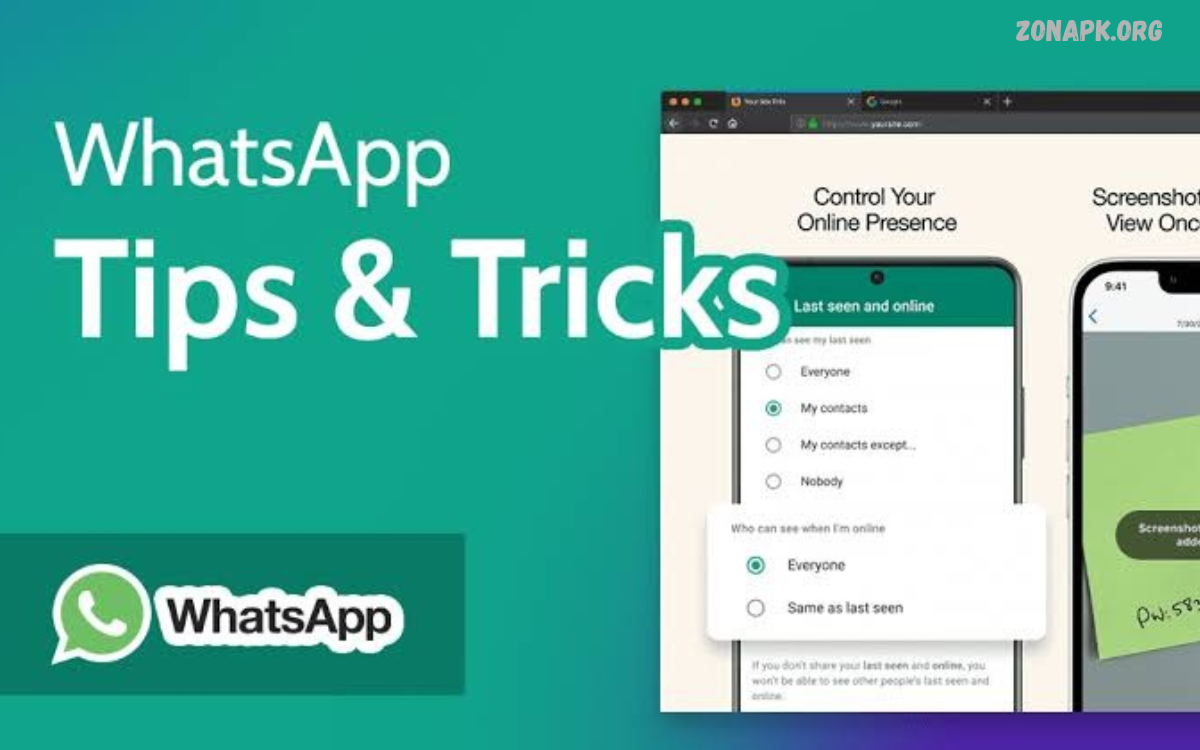
WhatsApp is a popular messaging app that helps people communicate through text messages, voice calls, video calls, and media sharing. Its useful features make daily communication easier for students, families, friends, and businesses.
Learning WhatsApp tips and features can help users improve privacy, organize conversations, manage notifications, and share files more efficiently. From chat locks to linked devices, simple settings can improve your messaging experience.
Customize Your WhatsApp Experience
WhatsApp offers several customization options that allow users to personalize their messaging experience. You can change chat wallpapers, adjust notification tones, choose light or dark themes, and manage settings for individual conversations.
These options help make conversations more comfortable and organized. Open WhatsApp settings to explore available choices and select the features that match your preferences and daily communication habits.
Improve Privacy with WhatsApp Settings
Privacy is an important part of using any messaging platform. WhatsApp provides controls for managing who can view your profile photo, About information, status updates, and last-seen details.
Open Settings, select Privacy, and review the available options. Depending on your preferences, you can limit visibility to contacts, selected people, or nobody for supported settings.
Use Chat Lock for Private Conversations
Chat Lock adds an extra layer of privacy to selected conversations. This feature moves locked chats into a separate area that requires device authentication or another supported verification method.
To use it, open a supported conversation, tap the contact or group name, and select Chat Lock if available. Follow the on-screen instructions to enable the feature and protect access to the conversation.
Send High-Quality Photos and Videos
WhatsApp makes sharing photos and videos simple, but media quality may vary depending on the sending method and selected settings. For clearer images, use the HD option when available or send the original file as a document.
Sending media as a document can help preserve the original file quality. However, recipients may need to download the file separately, so choose the method that best suits your conversation’s purpose.
Manage WhatsApp Notifications
Frequent notifications can interrupt studying, working, or relaxing. WhatsApp allows users to customize alerts for individual chats and groups, making it easier to focus on important conversations without unnecessary distractions.
Open a conversation, tap its name, and review the notification options. You can also mute selected chats for a chosen duration while keeping the conversation available whenever you want to read new messages.
Pin Important Chats
Pinned chats help keep important conversations near the top of your chat list. This feature is useful for family conversations, school groups, work discussions, or chats containing information you frequently need.
On supported devices, press and hold a conversation on Android or swipe the chat on iPhone to find the pin option. The exact steps may vary slightly depending on your WhatsApp version.
Use WhatsApp Message Editing
WhatsApp allows users to edit eligible sent messages when they notice a spelling mistake or need to clarify information. This feature can be useful for correcting names, dates, short instructions, and other details.
To edit an eligible message, press and hold it, open the additional options if necessary, and select Edit. Make your changes and save them. Edited messages are marked accordingly, and editing is available only within WhatsApp’s specified time limit.
Send Disappearing Messages
Disappearing messages can help reduce the amount of conversation history stored in a chat. WhatsApp offers configurable durations for eligible conversations, allowing new messages to disappear automatically after the selected period.
Open the contact or group information and locate the disappearing messages setting. Remember that disappearing messages do not guarantee complete privacy because recipients may save, copy, or capture information before it disappears.
Share Your Live Location
Location sharing helps friends and family coordinate meetings or understand where someone is during a journey. WhatsApp supports sharing a current location and, where available, a live location for a selected duration.
Open a conversation, select the attachment or plus option, and choose Location. Review the available sharing choices before sending anything, and share your location only with people you trust.
Use WhatsApp on Multiple Devices
Linked Devices lets users access their WhatsApp account on supported computers, browsers, tablets, and additional phones. This can be useful when switching between devices during work, study, or everyday communication.
Open WhatsApp settings or the menu and select Linked Devices. Follow the instructions to link another device, then regularly review the list and log out of any device you no longer recognize or use.
Protect Your Account with Two-Step Verification
Two-step verification adds an extra security step when registering your WhatsApp account again. It uses a PIN that you create, helping protect your account if someone attempts to register your number on another device.
Open Settings, select Account, and choose Two-step verification if the option appears in your version. Create a PIN you can remember, keep recovery information secure, and never share verification codes with strangers.
Organize Group Chats More Effectively
WhatsApp groups help people coordinate projects, share announcements, and stay connected with communities. However, large groups can become difficult to manage when messages arrive throughout the day.
Mute noisy groups, pin important conversations, and use search to find older information. Group administrators can also use available membership and messaging controls to maintain a more organized and respectful communication space.
Search WhatsApp Messages Quickly
The search feature helps users find older messages without scrolling through lengthy conversations. You can search for words, names, links, and other information supported by WhatsApp’s search interface.
Open the search function and enter a distinctive word or phrase from the conversation. Where available, use chat-specific search or media filters to narrow results and find the information you need more quickly.
Share Documents and Other Files
WhatsApp supports sharing documents, PDFs, spreadsheets, and other file types within supported limits. This helps students exchange notes, colleagues share work documents, and families send important files without switching between apps.
Before sending a file, check its contents and confirm that the recipient is correct. Avoid sharing confidential documents in public groups, and remember that file size limits and supported formats may vary by platform and app version.
Back Up WhatsApp Chats
Chat backups help preserve conversation history when you change phones or reinstall WhatsApp. Depending on your device, backups may use Google Account storage on Android or iCloud on iPhone.
Open WhatsApp settings, find Chats, and select Chat Backup to review the available options. Check your backup date and account settings, and understand how encrypted backups work before enabling them or transferring your account.
Restore WhatsApp Messages Carefully
Restoring messages can help after moving to a new phone or reinstalling the app. Successful restoration generally depends on having a suitable backup, using the correct account and phone number, and following the supported setup process.
Before resetting or removing WhatsApp from your device, check whether a recent backup exists. Avoid unverified recovery apps, especially those that request account credentials or access to private messages.
Read Also: Best AI Voice Generator: Apps for Realistic Text-to-Speech
Use WhatsApp Status Features
WhatsApp Status allows users to share photos, videos, text, and other supported updates that disappear after a limited period. It provides a convenient way to share everyday moments without sending a separate message to every contact.
You can review your status privacy settings to decide who can view your updates. Before publishing, consider whether the content suits the selected audience, and avoid sharing private details that could reveal your location or personal information.
Format Text in WhatsApp Messages
Text formatting can make messages easier to read, especially when sharing instructions, reminders, or important information. WhatsApp supports formatting options such as bold, italics, strikethrough, and monospaced text in supported versions.
For example, formatting markers can emphasize a deadline or distinguish a heading from ordinary text. Use these options thoughtfully so your messages remain clear and professional rather than visually crowded.
Reduce Mobile Data Usage
WhatsApp includes settings to help users manage mobile data use. Automatic media downloads, frequent video calls, and large file transfers can use substantial data on a mobile network.
Open Storage and Data settings to review media download preferences and call-related data options. Select suitable download conditions for mobile data and Wi-Fi, particularly when using a limited data package.
Manage WhatsApp Storage
Photos, videos, documents, and forwarded media can gradually occupy significant storage space. WhatsApp provides storage management tools to help you identify large files and conversations that use significant device storage.
Open Settings and find Storage and Data, then select Manage Storage if available. Review the displayed files carefully before deleting anything, since removing media from your device may affect your ability to access it later.
Use WhatsApp Voice Messages
Voice messages offer a convenient alternative to typing long explanations. They can convey tone and context when typing is inconvenient, making them useful for quick updates, reminders, and everyday conversations.
Press and hold the microphone button to record a message, or use the supported lock gesture when you want to continue recording without holding the button. Listen carefully before sending sensitive information, especially when recording in public places.
Discover the Best AI Voice Generator
The Best AI Voice Generator is a useful keyword for readers exploring modern communication and content creation tools. AI voice generators can convert written scripts into synthetic speech for tutorials, educational videos, presentations, and social media content.
Although WhatsApp offers voice messages and calling, an external AI voice generator serves a different purpose. You can create narration with a suitable tool and share the resulting audio file through WhatsApp, as long as the format and size are supported.
How AI Voice Generators Complement WhatsApp
AI voice generation helps creators create consistent narration for product demonstrations, learning materials, and informational videos. Some platforms offer different languages, voice styles, and speech controls, although available features depend on the service.
When choosing the Best AI Voice Generator, compare audio quality, language support, pricing, export formats, and usage rights. Use only voices and recordings you have permission to use, and clearly disclose synthetic audio when the situation calls for transparency.
Use WhatsApp for Business Communication
WhatsApp Business offers tools designed for small businesses and customer communication. Depending on the version, users can create a business profile, organize customer conversations with labels, and use greeting or away messages.
Businesses should keep communication helpful, accurate, and respectful. Obtain appropriate permission before sending promotional messages, protect customer information, and avoid sharing misleading claims or unsolicited content.
Make WhatsApp Calls More Convenient
WhatsApp voice and video calls help people communicate across distances using an internet connection. Call quality can depend on network strength, device performance, and the environment where each participant is connecting.
For clearer conversations, use a stable connection, check microphone permissions, and reduce background noise. Review your privacy and calling settings regularly, especially if you receive unwanted calls from unfamiliar accounts.
Avoid Common WhatsApp Scams
Scammers may send suspicious links, impersonate friends, or request verification codes and money. Unexpected messages that create urgency or promise prizes deserve careful attention, particularly when they ask you to reveal personal information.
Never share your WhatsApp verification code or account PIN with another person. Block and report suspicious accounts, verify unusual requests through a separate trusted channel, and use official app stores for WhatsApp updates.
Keep WhatsApp Updated
Updates can introduce new features, improve compatibility, and address security issues. Using an outdated version may also mean missing useful privacy controls or experiencing problems with supported functions.
Check the official Google Play Store or Apple App Store for available WhatsApp updates. Avoid unofficial modified versions that may expose your account or personal information to unnecessary security risks.
Frequently Asked Questions
What Are the Most Useful WhatsApp Tips and Features?
Useful options include Chat Lock, disappearing messages, linked devices, chat backups, message editing, storage management, and privacy controls. The best choices depend on how you communicate and which features are available in your version.
How Can I Improve WhatsApp Privacy?
Review profile visibility, status audiences, group permissions, linked devices, and two-step verification. Avoid sharing verification codes and keep your device protected with a secure screen lock.
Can I Use an AI Voice Generator with WhatsApp?
Yes. You can create narration using a compatible AI voice generator, export the audio, and share the file through WhatsApp. Check file limits, usage rights, and the recipient’s ability to play the format.
How Do I Save WhatsApp Chats?
Use WhatsApp’s built-in chat backup options and verify the associated Google Account or iCloud settings. Confirm that a recent backup is available before transferring your account or reinstalling the app.
How Can I Reduce WhatsApp Data Usage?
Adjust automatic media downloads, use Wi-Fi for large transfers when practical, and review available call-data settings. These steps can help reduce mobile data consumption.
Conclusion
WhatsApp tips and features can make everyday messaging more convenient, organized, and secure. By learning privacy controls, backups, linked devices, media sharing, and notification settings, users can make better use of the application.
AI voice tools add another option for people who create digital content and educational materials. Whether you use WhatsApp for personal conversations or business communication, prioritize privacy, verify unfamiliar messages, and explore new features responsibly.

1 Comment
Pingback: Video Downloader Apps: for Android Top Tools to Save Videos - Zonapk