
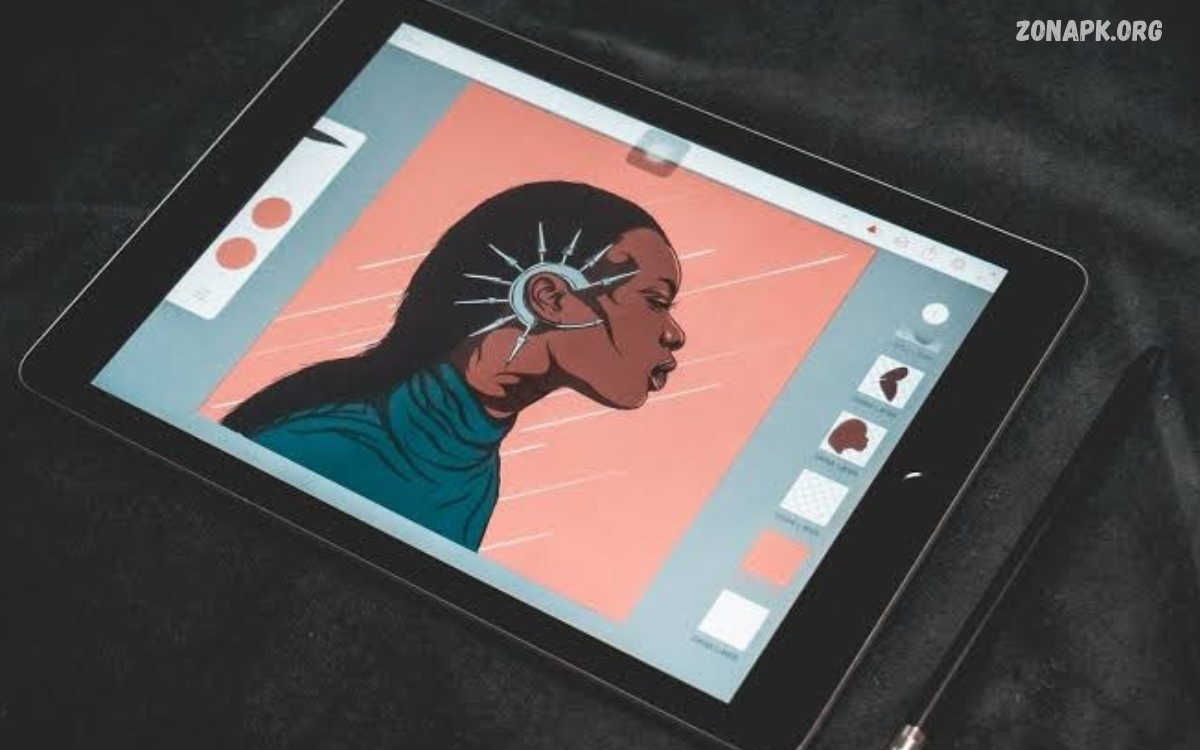
Mobile drawing tools make digital art accessible to beginners, students, designers, and professional artists. These tools help users create sketches, illustrations, cartoons, and detailed artwork directly on smartphones or tablets.
Modern drawing applications offer brushes, layers, colors, shapes, and advanced editing features. With the right mobile drawing tools, anyone can explore creative ideas, build artistic skills, and create digital artwork without an expensive computer.
What Are Mobile Drawing Tools?
Mobile drawing tools include apps, digital brushes, styluses, and other features for creating artwork on mobile devices. These resources transform smartphones and tablets into portable creative studios for sketching, painting, illustration, and graphic design.
Many tools support pressure-sensitive drawing, customizable brush settings, color palettes, and image export options. Their features vary by application, allowing users to choose suitable options for simple doodles, professional illustrations, or educational projects.
Benefits of Mobile Drawing Tools
Mobile drawing tools offer flexibility for people who enjoy creating artwork at home, school, or while travelling. Artists can capture inspiration whenever it appears, experiment with different styles, and organize creative projects without carrying traditional drawing materials.
Digital drawing also makes editing easier because users can undo mistakes, adjust colors, move objects, and experiment with layers. These features help beginners practise confidently while allowing experienced artists to improve their workflow and explore new artistic techniques.
Best Features of Mobile Drawing Tools
Useful drawing features can improve accuracy, creativity, and convenience. Brush customization, layer management, selection tools, and canvas adjustments allow artists to control their work while creating everything from quick sketches to polished illustrations.
Some applications also include symmetry guides, shape recognition, blending modes, and animation features. Choosing an application with practical tools makes digital drawing easier and helps users focus on artistic expression instead of complicated editing processes.
Popular Mobile Drawing Apps
Different drawing applications serve different creative needs. Some focus on simple sketching, while others provide advanced illustration features, painting brushes, vector graphics, and professional editing options for artists who want greater control over their artwork.
Before choosing an application, consider your device compatibility, preferred drawing style, available storage, and budget. Free applications can provide useful creative features, while paid versions may include additional brushes, advanced tools, or specialized workflows.
Sketchbook
Sketchbook is a drawing application designed for sketching, concept art, and illustration. Its clean interface, customizable brushes, and flexible canvas make it suitable for beginners and experienced artists who want a focused drawing experience on mobile devices.
Users can experiment with pencil effects, ink brushes, colors, and layers while developing their artistic ideas. The application is especially useful for quick sketches, character concepts, visual notes, and creative practice during everyday activities.
ibis Paint
ibis Paint offers a wide range of digital drawing features for illustration, manga, and anime-inspired artwork. Its tools include customizable brushes, layers, selection options, and effects that help artists create detailed images on compatible mobile devices.
The application can suit beginners who want to learn digital illustration and experienced users who need more control over their projects. Exploring brush settings and layer options helps artists understand the creative possibilities available through mobile drawing software.
Infinite Painter
Infinite Painter provides digital painting and illustration features for users seeking greater artistic control. Its brush engine, blending options, perspective tools, and canvas controls support various styles, including realistic painting, concept art, and expressive digital sketches.
Artists can experiment with textures, lighting, and brush combinations to create distinctive results. The application can be useful for people who want to develop more advanced painting techniques while keeping their creative workflow portable.
Adobe Fresco
Adobe Fresco focuses on digital drawing and painting, offering tools designed for expressive illustrations. Depending on the device and available features, artists can explore vector brushes, raster brushes, and painting effects for different types of artwork.
Its creative tools can help users produce illustrations, lettering, and colorful compositions. Before choosing it, check current device compatibility and subscription requirements to ensure the application fits your needs and preferred drawing workflow.
Free Mobile Drawing Tools for Beginners
Free mobile drawing tools provide an accessible starting point for people learning digital art. Beginners can practise basic shapes, line control, shading, and color selection without immediately investing in expensive software or professional drawing equipment.
When choosing a free application, review its available brushes, advertisements, export options, and in-app purchases. A simple interface and useful learning features are often more valuable than an extensive collection of advanced tools that beginners may not need.
How to Choose the Right Mobile Drawing Tools
Choosing suitable drawing tools depends on your creative goals, experience, and device. Someone interested in casual sketches may prefer a lightweight application, while an illustrator might need advanced layers, brush customization, and detailed color controls.
Consider whether the application supports your preferred file formats and allows artwork to be exported at an appropriate resolution. Reading recent user reviews and testing free versions can help you identify an application that matches your requirements.
Mobile Drawing Tools for Digital Sketching
Digital sketching is an effective way to develop ideas before creating finished artwork. Mobile drawing tools allow users to practise outlines, proportions, perspective, and composition while experimenting with different pencil styles and line weights.
A useful sketching routine begins with simple shapes and rough outlines. Gradually adding details, shadows, and highlights helps transform basic concepts into more complete illustrations while improving observation and hand coordination.
Mobile Drawing Tools for Digital Painting
Digital painting tools help artists create colorful scenes, portraits, landscapes, and imaginative illustrations. Brush textures, opacity controls, blending features, and layer adjustments allow users to simulate different painting styles directly on a mobile screen.
Experimenting with brush size and transparency can create depth and visual interest. Artists can also use separate layers for backgrounds, subjects, and highlights, making adjustments easier without changing unrelated parts of the composition.
Importance of Layers in Mobile Drawing
Layers separate different elements of digital artwork, making editing more organized and flexible. Artists can keep sketches, line art, backgrounds, shadows, and colors on separate layers to adjust individual elements without rebuilding the entire illustration.
Understanding layer opacity, blending modes, and visibility settings can improve the quality of digital projects. Beginners should practise naming layers clearly and organizing them logically, especially when working on detailed drawings with many visual elements.
Using a Stylus with Mobile Drawing Tools
A stylus can improve drawing comfort and precision, especially for fine lines, small details, or controlled shading. Some styluses support pressure sensitivity, allowing compatible applications and devices to respond to different levels of drawing pressure.
However, a specialized stylus is not essential for every artist. Many mobile drawing tools support finger input, making them accessible to beginners who want to experiment before buying additional accessories. Check compatibility before buying a stylus.
Read Also: Digital Canvas Apps: Best Tools for Creating Digital Art
Tips for Creating Better Digital Artwork
Improving digital artwork requires regular practice, experimentation, and attention to basic artistic principles. Mobile drawing tools make it easier to test different approaches, compare results, and refine creative techniques without wasting paper or traditional art supplies.
Focus on line quality, proportions, lighting, composition, and color harmony. Studying reference images, completing small projects, and reviewing earlier drawings can reveal progress over time and help identify skills that need further development.
Common Mistakes When Using Mobile Drawing Tools
Beginners sometimes use too many effects, add excessive details, or work without a clear composition. These habits can make illustrations look confusing and increase editing time, especially when users are still learning how digital brushes and layers work.
Another common mistake is ignoring canvas resolution or saving files in unsuitable formats. Choosing appropriate export settings helps preserve image quality, while keeping editable project files allows future changes without starting from the beginning.
Mobile Drawing Tools for Students
Mobile drawing tools can support learning through diagrams, visual notes, illustrations, and creative assignments. Students can use drawing applications to explain scientific concepts, design presentations, practise lettering, or develop visual storytelling skills through interactive digital projects.
These applications also encourage experimentation and independent learning. Teachers and students can explore digital illustration as part of art education, provided the selected tools meet classroom requirements and support the devices available to learners.
Mobile Drawing Tools for Professional Artists
Professional artists can use mobile drawing tools to develop concepts, prepare rough illustrations, create client previews, and continue projects while away from a desktop workstation. Advanced applications provide features that support detailed editing and organized creative workflows.
Mobile devices may not replace every professional desktop setup, especially for complex projects requiring specialized software. However, they can complement existing workflows by providing portability, quick sketching, and convenient ways to review or develop ideas.
How to Improve Drawing Skills on Mobile Devices
Consistent practice helps artists become more comfortable with mobile drawing tools. Start with basic exercises involving straight lines, circles, geometric shapes, and simple objects before progressing toward portraits, landscapes, and more detailed illustrations.
Explore one feature at a time instead of trying every tool immediately. Practising brush control, perspective, shading, and color selection separately makes learning more manageable and helps build a stronger foundation for complex digital artwork.
Saving and Sharing Digital Artwork
Saving artwork correctly helps protect creative projects and makes it easier to share them online. Many mobile drawing applications support common image formats, while some also provide project formats that preserve layers and editable elements.
Choose a suitable format according to your intended use. PNG can be useful for graphics requiring transparency, while JPEG is often suitable for photographs and smaller image files. Keep backup copies of important projects to reduce the risk of losing your work.
Future of Mobile Drawing Tools
Mobile drawing technology continues to evolve through better touchscreens, more powerful processors, pressure-sensitive accessories, and new software features. These improvements help make digital illustration more convenient for beginners, hobbyists, and professional artists.
Artificial intelligence features may also support selected creative tasks, such as generating ideas or assisting with editing. However, artistic judgment, practice, composition, and personal expression remain essential to creating meaningful digital artwork.
Frequently Asked Questions
What Are the Best Mobile Drawing Tools?
The best mobile drawing tools depend on your needs. Sketchbook, ibis Paint, Infinite Painter, and Adobe Fresco offer different combinations of sketching, illustration, and painting features. Check device compatibility and current pricing before selecting an application.
Can I Use Mobile Drawing Tools for Free?
Yes, several drawing applications offer free versions with useful brushes, layers, and editing features. Some include advertisements, optional purchases, or paid subscriptions, so review their current terms before choosing a tool.
Do I Need a Stylus for Mobile Drawing?
No, a stylus is optional for many drawing applications. Finger drawing works well for simple sketches and casual artwork, while a compatible stylus can provide better precision for detailed illustrations and handwriting.
Are Mobile Drawing Tools Suitable for Professional Art?
Yes, many mobile applications support detailed illustrations, digital painting, and professional concept development. The best choice depends on project requirements, device capabilities, export quality, and compatibility with your existing workflow.
How Can Beginners Learn Mobile Drawing?
Beginners can start with basic shapes, simple sketches, and short daily practice sessions. Learning brush control, layers, shading, and composition gradually helps build confidence and improves drawing skills over time.
Which Mobile Drawing Tools Support Layers?
Many illustration and painting applications support layers, including Sketchbook, ibis Paint, Infinite Painter, and Adobe Fresco. Available layer features vary by application, device, and version, so check the current specifications before installing.
Conclusion
Mobile drawing tools provide convenient ways to sketch, paint, illustrate, and explore digital creativity using smartphones and tablets. Their brushes, layers, color controls, and editing features support artistic projects for beginners, students, designers, and experienced illustrators.
The right app depends on your goals, device compatibility, and preferred creative style. With regular practice and the right tools, you can build your drawing skills, create original artwork, and enjoy a flexible digital art experience wherever inspiration strikes.

1 Comment
Pingback: PUBG Mobile: Gameplay, Features, Updates, and Beginner Tips - Zonapk