

Free Fire is one of the most popular battle royale games in the world, attracting millions of players across a wide range of devices. Whether you play on a high-end smartphone, a mid-range device, or a budget phone, having the right game settings can significantly improve your performance and overall gaming experience.
The best Free Fire settings vary depending on your device’s specifications. High-end devices can handle higher graphics and frame rates, while lower-end phones require optimized settings to reduce lag and maintain stable performance.
Why Free Fire Settings Matter
Game settings directly affect gameplay quality. Even highly skilled players can struggle if their device experiences lag, frame drops, delayed responses, or inaccurate aiming. Proper optimization ensures stable performance during intense combat situations.
Well-balanced settings improve reaction time, aiming precision, and visual clarity. Players gain better control over character movement and weapon handling. Optimized configurations also reduce distractions caused by graphical stuttering or touch response delays, allowing greater focus during battles.
Best Graphics Settings For Low-End Devices
Players using budget smartphones often face challenges such as lag, overheating, and FPS drops. Selecting appropriate graphics settings helps maintain smooth gameplay without placing excessive strain on device hardware.
Recommended settings include Smooth Graphics, High FPS if available, Shadow Off, and Auto Scale enabled. These adjustments reduce processing demands while maintaining sufficient visual clarity. Lower graphics quality often provides a competitive advantage because enemies become easier to spot without excessive visual effects.
Recommended Low-End Device Graphics Settings
- Graphics: Smooth
- High FPS: On
- Shadow: Off
- Visual Effects: Low
- Auto Scale: On
- Screen Brightness: 80–100%
These settings prioritize performance over appearance, creating a smoother gaming experience during intense fights.
Best Graphics Settings For Mid-Range Devices
Mid-range smartphones provide a balance between visual quality and gaming performance. Players can enjoy improved graphics while maintaining stable frame rates.
Standard or Ultra graphics settings work well for most mid-range devices. High FPS should remain enabled whenever possible. This combination delivers enhanced environmental details without sacrificing responsiveness. Players benefit from clearer visuals and smoother gameplay throughout ranked matches and tournaments.
Recommended Mid-Range Graphics Settings
- Graphics: Standard
- High FPS: On
- Shadow: Off
- Visual Effects: Medium
- Auto Scale: Off
- Brightness: 90–100%
These settings create an ideal balance between performance and visual quality.
Read Also: Free Fire India से जुड़ी खबरें- Latest Updates, Launch News, Features & Esports Guide
Best Graphics Settings For High-End Devices
Flagship smartphones feature powerful processors, advanced GPUs, and high refresh rate displays. These devices can easily handle maximum graphical settings while maintaining excellent performance.
Ultra graphics combined with High FPS delivers the most immersive Free Fire experience. High-end devices benefit from sharper textures, enhanced environmental effects, and smoother animations. Competitive players can enjoy both visual excellence and responsive controls without significant performance concerns.
Recommended High-End Graphics Settings
- Graphics: Ultra
- High FPS: On
- Shadow: On or Off
- Visual Effects: High
- Auto Scale: Off
- Brightness: 100%
These settings maximize visual quality while preserving competitive responsiveness.
Best Sensitivity Settings For All Devices
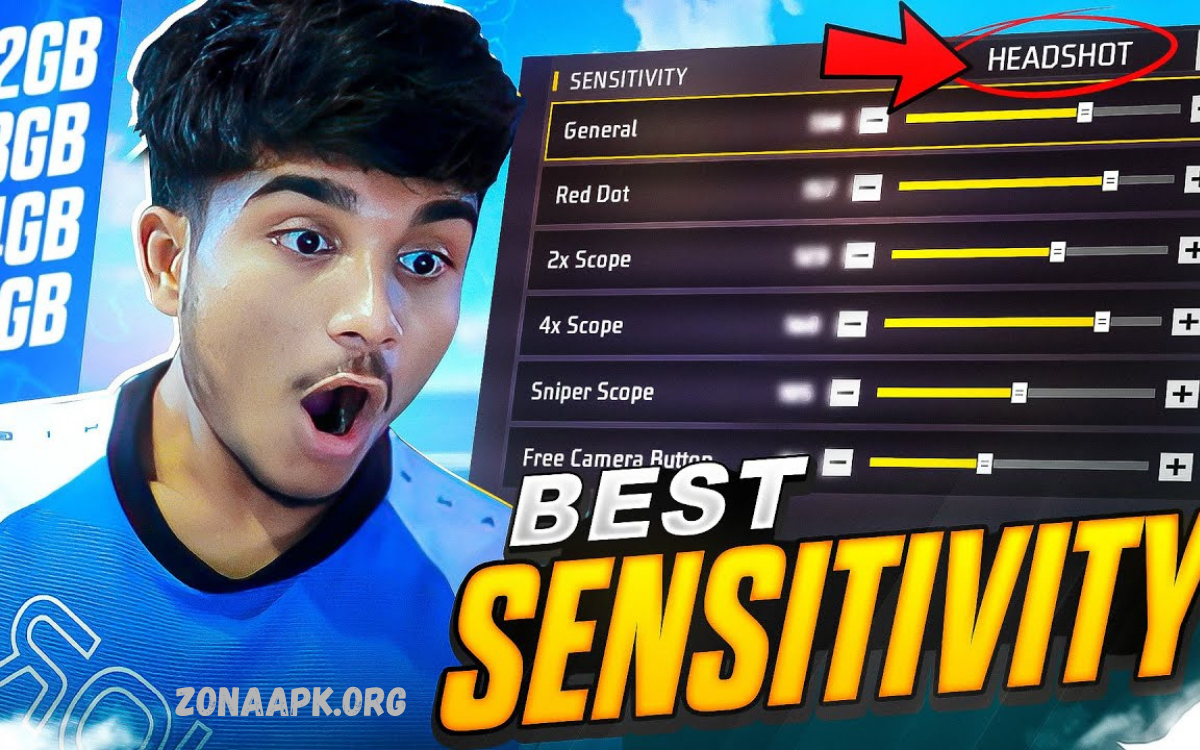
Sensitivity settings significantly influence aiming accuracy. Proper sensitivity allows players to control recoil effectively and perform quick headshots during close-range and long-range engagements.
Many professional Free Fire players adjust sensitivity based on personal preference and device screen size. However, several values consistently deliver strong results across different devices. Balanced sensitivity settings improve crosshair placement and weapon control without creating excessive movement.
Recommended Sensitivity Settings
- General: 95–100
- Red Dot: 85–95
- 2x Scope: 75–85
- 4x Scope: 65–75
- Sniper Scope: 50–60
- Free Look: 70–80
These values support accurate aiming while maintaining rapid target acquisition during combat situations.
Best HUD Settings For Better Control
HUD customization affects player comfort and control efficiency. A poorly arranged interface can slow reactions and reduce combat effectiveness.
Players should position essential buttons within easy thumb reach. Fire buttons require placement in comfortable locations to support drag shots and quick firing techniques. Customizing HUD layouts according to individual hand size improves gameplay consistency and reduces accidental inputs.
HUD Optimization Tips
- Increase fire button size.
- Place jump and crouch buttons close together.
- Keep movement controls unobstructed.
- Position scope button for quick access.
- Adjust transparency levels for better visibility.
Effective HUD design contributes significantly to gameplay improvement.
Best Control Settings For Competitive Players
Control settings determine responsiveness during movement and shooting actions. Proper configurations help players perform advanced techniques more effectively.
Competitive players often prefer precise control settings that support aggressive gameplay. Features such as quick weapon switching and accurate aiming become more reliable when controls are properly optimized. Consistent settings also improve muscle memory during ranked matches.
Recommended Control Settings
- Aim Precision: Default
- Left Fire Button: Always
- Quick Weapon Switch: On
- Quick Reload: On
- Auto Pickup: On
- Vehicle Controls: Two-Handed
These settings provide a strong foundation for both casual and competitive gameplay.
Best Display Settings For Enhanced Visibility
Visibility plays a critical role in battle royale games. Spotting opponents quickly often determines victory or defeat during engagements.
Display optimization improves enemy detection and environmental awareness. Higher brightness levels help reveal opponents hiding in shadows or dark areas. Clean visuals also reduce eye strain during extended gaming sessions.
Recommended Display Settings
- Brightness: 90–100%
- Color Mode: Vivid
- Screen Refresh Rate: Highest Available
- Blue Light Filter: Off During Gameplay
These adjustments create a clearer and more competitive viewing experience.
Best Free Fire Settings For Headshots
Headshots represent one of the most important skills in Free Fire. Effective sensitivity and control settings make headshot execution more consistent.
High General sensitivity combined with proper fire button placement supports drag-shot techniques. Players can quickly move crosshairs from body level to head level during firefights. Consistent practice with optimized settings dramatically increases headshot percentages.
Headshot-Focused Configuration
- General Sensitivity: 100
- Red Dot Sensitivity: 90
- Fire Button Size: 50–60%
- Aim Precision: Default
- Graphics: Smooth
This setup remains popular among experienced players because it emphasizes speed and accuracy.
Device Performance Optimization Tips
Game settings alone cannot solve every performance issue. Device maintenance also contributes significantly to smooth gameplay.
Background applications consume memory and processing resources. Regular device optimization ensures Free Fire receives maximum available system resources. Proper maintenance reduces lag, overheating, and battery drain during gaming sessions.
Performance Improvement Tips
- Close background applications.
- Clear device cache regularly.
- Maintain adequate storage space.
- Update Free Fire frequently.
- Use gaming mode if available.
- Avoid charging during gameplay.
- Restart device before long sessions.
These practices help maintain stable performance across all device categories.
Common Setting Mistakes Players Make
Many players copy professional settings without considering device specifications or personal preferences. This approach often produces disappointing results.
Settings should complement individual playstyles and hardware capabilities. Extremely high sensitivity values may reduce accuracy for some players, while maximum graphics settings can create performance issues on weaker devices. Testing and gradual adjustment remain essential for finding optimal configurations.
Understanding personal strengths and weaknesses allows players to develop customized settings that improve performance more effectively than generic recommendations.
How To Test And Adjust Your Settings
Finding ideal settings requires experimentation. Every player possesses unique aiming habits, reaction speeds, and gameplay preferences.
Training grounds provide an excellent environment for testing new configurations. Players should adjust one setting at a time and evaluate performance before making additional changes. This method prevents confusion and helps identify improvements more accurately.
Consistent testing ensures settings evolve alongside skill development. As players gain experience, small adjustments may unlock even greater performance potential.
Frequently Asked Questions
What Are The Best Settings For All Devices In Free Fire?
The best Free Fire settings depend on your device performance and playing style. Most players achieve good results using high sensitivity, Smooth graphics, High FPS, and a customized HUD layout that improves comfort and control.
Which Graphics Setting Is Best For Free Fire?
Smooth graphics combined with High FPS is often considered the best option for competitive gameplay. This setting provides smoother performance, reduced lag, and faster response times during battles.
What Is The Best Sensitivity For Headshots In Free Fire?
Many players prefer General sensitivity between 95 and 100 for easier drag shots and quicker headshots. Red Dot sensitivity between 85 and 95 also helps improve aiming accuracy.
Should Low-End Devices Use High Graphics Settings?
Low-end devices should avoid high graphics settings because they can cause lag, frame drops, and overheating. Smooth graphics with High FPS usually delivers the best performance.
How Can I Reduce Lag In Free Fire?
Players can reduce lag by closing background applications, clearing cache files, maintaining free storage space, enabling gaming mode, and using optimized graphics settings suitable for their device.
Does HUD Customization Improve Gameplay?
Yes, HUD customization can significantly improve gameplay. Proper button placement allows faster reactions, more accurate shooting, and better movement during intense combat situations.
Conclusion
What Are the Best Settings for All Devices in Free Fire? The answer depends on device specifications, personal preferences, and gameplay style. However, optimized graphics, sensitivity, controls, HUD layout, and display configurations consistently improve performance across all device categories.
Low-end devices benefit from performance-focused settings, while high-end smartphones can maximize visual quality without sacrificing responsiveness. Sensitivity optimization remains essential for accurate aiming and successful headshots. Combined with proper device maintenance and regular practice, these settings can dramatically enhance gameplay results.
