
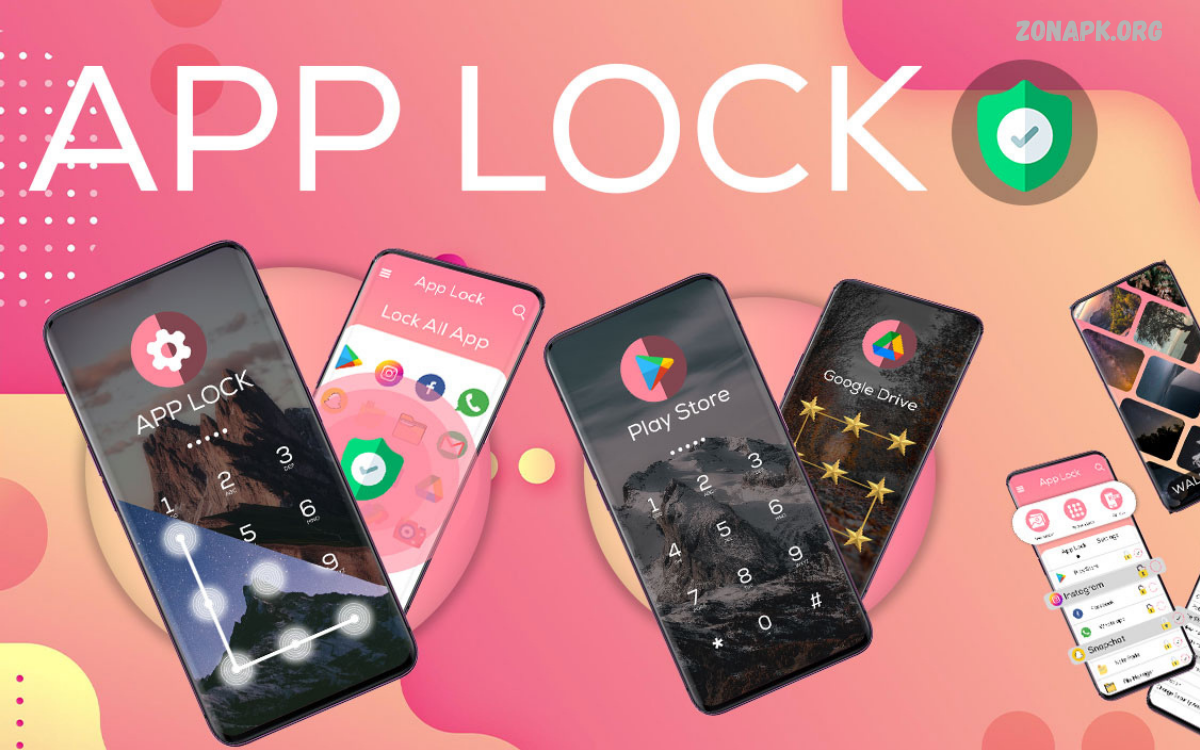
Best App Lock Apps help Android users protect personal information, private conversations, photos, videos, and sensitive applications. Smartphones store valuable data, including social media accounts, banking apps, emails, and personal documents. An app lock adds an extra layer of security by requiring a PIN, password, pattern, or biometric authentication before opening selected applications.
Choosing the right app lock depends on security features, ease of use, compatibility, and privacy practices. Some Android devices include built-in app locking, while third-party apps offer extra customization.
Why Use Best App Lock Apps?
Smartphones often contain information that users prefer to keep private. Friends, family members, or others might occasionally borrow a phone, creating opportunities for accidental access to personal messages, photos, or social media accounts. App locking restricts access to selected apps without preventing normal phone use.
The Best App Lock Apps also offer convenience for users who share devices with family members or keep important information on their smartphones. Depending on the application, users can choose different authentication methods and customize locking preferences. However, app locking should complement strong device security, not replace it.
AppLock by DoMobile Lab
AppLock by DoMobile Lab is a well-known Android application designed to restrict access to selected apps. Depending on the version and device compatibility, it may provide PIN, pattern, or fingerprint-based unlocking, along with options for protecting messaging platforms, galleries, and other installed applications.
Before installing this app, review its current permissions, developer information, privacy policy, and recent user feedback. Some features may require additional permissions or may differ between Android versions. Download it only from a trusted source, and avoid granting unnecessary access to sensitive phone information.
Norton App Lock
Norton App Lock was developed as an application-locking solution for Android users seeking additional control over access to personal apps. Its original purpose included protecting selected applications with a PIN, pattern, or fingerprint, helping prevent casual access to private content when someone else uses a device.
However, availability and support can change over time, so Norton App Lock should not automatically be considered a current recommendation. Check the official Norton website or Google Play Store for its present status before looking for an installation. Avoid downloading old APK files from unfamiliar websites because outdated applications may contain security weaknesses.
Smart AppLock
Smart AppLock is a name associated with Android applications designed to protect selected apps using passwords, patterns, or other supported authentication methods. Features vary by developer and version, so users should confirm the exact publisher before installation rather than assuming every application with a similar name offers the same protection.
When evaluating Smart AppLock, check compatibility with your Android version and examine its requested permissions. An app-locking tool may need accessibility access or other system privileges to perform particular functions. Grant such access only when necessary, and confirm that the developer explains how collected information is handled.
App Lock Features Built Into Android Phones
Built-in app locking is often a practical starting point for users who want better privacy without installing another application. Some Android manufacturers provide native app-locking features through Settings or their security applications. Availability, authentication methods, and supported apps depend on the phone model and software version.
Users should search Settings for terms such as App Lock, Privacy, Security, or Private Space. Certain devices also support separate user profiles, secure folders, or private spaces that isolate selected apps and files. These built-in options can reduce reliance on third-party tools, although their capabilities differ across manufacturers.
Private Space on Supported Android Devices
Private Space is an Android feature available on supported devices and software versions. It creates a separate area for selected applications, allowing users to keep certain apps apart from the main app environment. Depending on device configuration, the private area can have its own authentication and visibility settings.
This option may suit people who want to separate personal applications from everyday phone activity. Check your device’s official Android documentation for eligibility and setup instructions. Private Space is not identical to a traditional app lock, but it can provide useful privacy controls without relying on an unfamiliar third-party application.
Essential Features to Look For
The Best App Lock Apps should provide reliable authentication, straightforward controls, and clear privacy information. PIN protection, strong passwords, pattern unlocking, and fingerprint authentication can make unauthorized access more difficult. Biometric support depends on the phone’s hardware, operating system, and the application’s implementation.
Other useful features may include automatic locking, customizable lock timing, support for multiple applications, and clear recovery procedures. Avoid choosing an app solely because it advertises numerous features. A simple, well-maintained application from a trustworthy developer may be a better choice than a complicated tool requesting excessive permissions.
PIN, Password, Pattern, and Fingerprint Protection
A PIN offers quick access while maintaining a basic barrier against casual snooping. A strong password can provide additional protection, particularly when it is unique and difficult to guess. Patterns are convenient, but simple shapes can be easier for another person to predict or observe.
Fingerprint authentication can make unlocking faster when supported by the device and application. It should be combined with a secure phone lock and an appropriate backup authentication method. Never share your PIN or password casually, and avoid writing authentication details somewhere that other people can easily access.
Protecting WhatsApp and Social Media Apps
Messaging and social media applications often contain private conversations, photographs, account details, and personal contacts. Locking these apps can help prevent casual access when another person borrows your phone. Many services also offer built-in privacy or biometric locking features that can work without an additional app-locking utility.
For stronger protection, enable the security features available within each application. Use two-step verification where supported, maintain a secure screen lock, and keep recovery information updated. Remember that an app lock cannot prevent every form of data exposure, especially when notifications display message previews on the lock screen.
Securing Photos and Videos
Private galleries may contain personal photographs, documents, screenshots, and videos. Some Android phones include a locked folder, secure gallery, or private storage feature that helps separate sensitive files from ordinary gallery content. These options may offer a more suitable solution than locking the entire gallery application.
Before moving important files into a secure folder, understand how backup, recovery, and account synchronization work. A forgotten password, device reset, or storage problem can affect access to private content. Maintain appropriate backups for important files while ensuring those backups are protected by reliable account security.
App Lock vs. Phone Screen Lock
A phone screen lock protects access to the device itself, while an app lock restricts access to selected applications after the phone has been unlocked. Using both adds extra barriers against unauthorized access. However, a third-party app lock’s effectiveness depends on its implementation and the permissions it has.
For most users, a strong screen lock should come first. Add built-in app protection or a reputable third-party solution when additional privacy is needed. Also review notification previews, saved passwords, account recovery options, and cloud backups, as these areas can expose information even when selected apps are locked.
Read Also: Best AI Apps for Android in 2026: Top Tools for Productivity and Creativity
How to Install an App Lock Safely
Open the Google Play Store and search for the exact application name. Check the developer’s identity, update history, user reviews, privacy information, and requested permissions. Download applications only from trusted sources, and avoid unfamiliar websites offering modified or supposedly premium APK files.
After installation, follow the setup instructions and choose a strong authentication method. Test the lock with a non-sensitive application before relying on it to protect important information. Review settings periodically, install available security updates, and remove the app if it behaves unexpectedly or requests permissions that don’t match its purpose.
Common App Lock Problems and Solutions
Some app-locking applications may stop working correctly after system updates, battery optimization changes, or permission adjustments. Others may not support every Android version or application. If locking stops functioning, check the app’s settings, compatibility information, and official troubleshooting guidance before changing important device security settings.
If you forget your app-lock password, use the application’s official recovery procedure. Avoid unofficial unlock tools that request account credentials or broad device access. If an app lock becomes unreliable, switch to a supported built-in privacy feature or uninstall the tool carefully after ensuring that you can still access your important files and accounts.
Privacy and Permissions: What Users Should Know
App-locking tools may request access to accessibility services, usage information, notifications, or other system features to detect when protected apps open. These permissions can provide powerful functionality, but they also require careful evaluation because they may expose sensitive activity or information.
Read the privacy policy and check the developer’s explanations before granting access. Prefer applications that request only necessary permissions and provide transparent information about data collection. An app’s popularity or high rating does not guarantee strong privacy practices, so review its current behavior rather than relying exclusively on marketing claims.
Best App Lock Apps for Different Needs
Users seeking basic protection should first investigate their phone’s built-in app lock, secure folder, or private space features. These options may provide convenient protection without requiring another application. The best choice depends on the device manufacturer, Android version, and the type of information that needs protection.
People who require additional customization can evaluate reputable third-party app lockers available through official distribution channels. Compare supported authentication methods, maintenance history, permission requirements, and recovery options. No single app lock works best for every Android phone, so compatibility and trustworthy security practices should guide your final decision.
Tips for Improving Android Privacy
Keep Android and installed applications updated to receive available security improvements. Use a strong screen lock, enable two-factor authentication for important accounts, and review the permissions you grant installed apps.
Consider disabling sensitive lock-screen notification previews and using secure storage for private documents or photos.
Frequently Asked Questions
What Are the Best App Lock Apps for Android?
The best option depends on your phone and privacy requirements. Start by checking built-in features like App Lock, Secure Folder, or Private Space. If you prefer a third-party tool, review its current availability, developer reputation, compatibility, permissions, and privacy policy before installation.
Are App Lock Apps Safe?
Some app-locking applications provide useful privacy features, but safety varies by developer and implementation. Download from trusted sources, examine permissions, and avoid applications that request unnecessary access. A strong phone screen lock remains essential even when additional app protection is enabled.
Can I Lock WhatsApp Without Installing Another App?
Yes, if your device supports WhatsApp’s built-in app-locking feature. Open WhatsApp settings and look for its privacy or app-lock options. Menu names and available authentication methods can vary, so consult the current in-app instructions if the setting is not immediately visible.
Do App Lock Apps Protect Photos?
An app lock may restrict access to a gallery app, but it doesn’t necessarily encrypt every photo stored on the device. For sensitive images, consider a supported secure folder or locked storage feature. Check backup settings to understand where copies of protected files may exist.
Do App Lock Apps Drain Battery?
Battery usage varies by application, Android version, and the services required for locking. Some tools may use background resources to detect app launches. Choose a maintained app, monitor battery usage in Settings, and avoid installing multiple app lockers that do the same thing.
Can I Recover a Forgotten App Lock Password?
Recovery options depend on the particular application or built-in security feature. Use the official recovery instructions and make sure your recovery information is up to date. Avoid unknown unlock utilities because they may expose personal data or compromise device security.
Conclusion
The best app lock apps help Android users add privacy controls to personal apps, messages, photos, and other sensitive content. However, the right solution depends on device compatibility, security features, developer reliability, and permission requirements.
For better protection, combine app locking with a strong screen lock, keep software updated, secure your account settings, and manage permissions carefully. Review applications regularly and remove tools that no longer receive support or behave suspiciously.

1 Comment
Pingback: Best Keyboard Apps for Android: Top Picks for Typing, Customization, and Productivity - Zonapk