

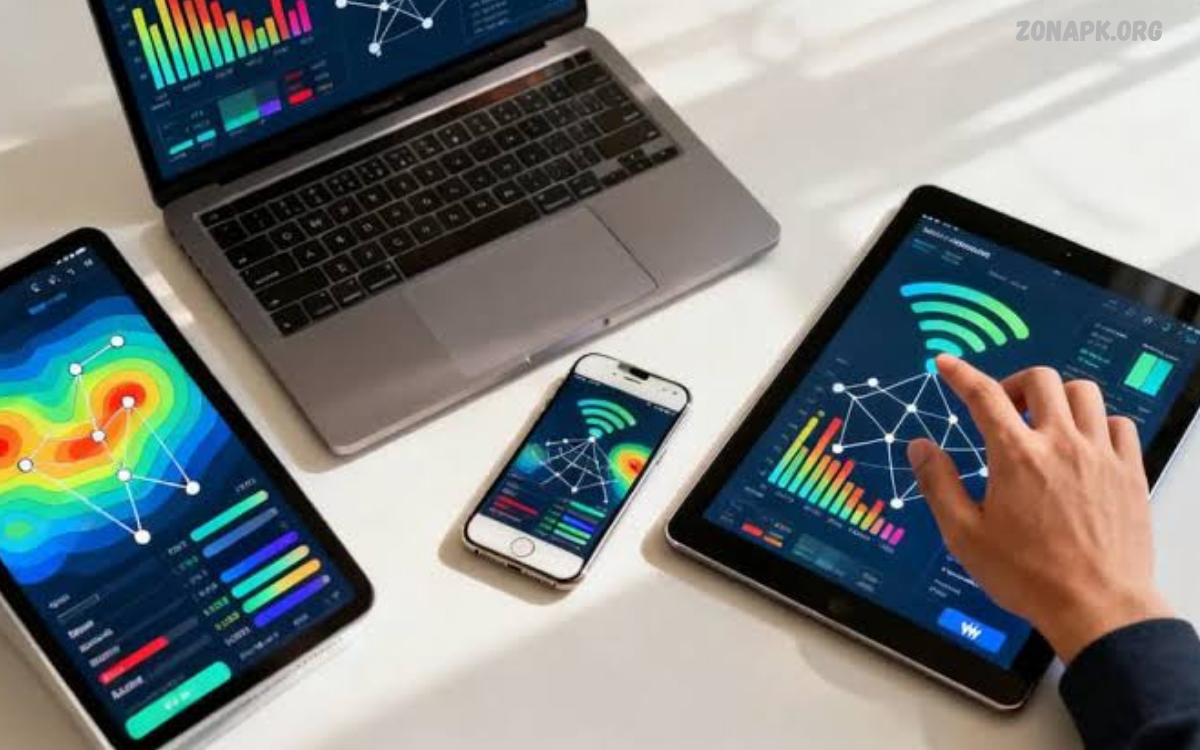
The Best WiFi Analyzer Apps help users check wireless signal strength, identify nearby networks, and troubleshoot common internet connectivity problems.
Whether you use WiFi for gaming, streaming, online classes, or office work, a reliable analyzer can help you investigate connection issues. Instead of randomly changing router settings, you can examine wireless conditions and make informed decisions to improve your home or office network.
What Are WiFi Analyzer Apps?
WiFi analyzer apps examine wireless networks and display information about nearby access points. Depending on the application and device, they can show network names, signal strength, channels, frequency bands, and other technical details that help users understand their WiFi environment.
These apps help beginners, gamers, network administrators, and everyday internet users. Many offer simple graphs and visual indicators that make wireless information easier to understand without requiring advanced networking knowledge or expensive professional equipment.
Why Use the Best WiFi Analyzer Apps?
Slow internet can result from several factors, including weak WiFi signals, crowded wireless channels, router placement, and interference from nearby networks. The Best WiFi Analyzer Apps help users investigate these issues and determine whether wireless conditions might be affecting their connection.
These tools are particularly useful when setting up a new router, improving coverage in different rooms, or troubleshooting frequent disconnections. By comparing measurements before and after making changes, users can identify potential improvements and create a more reliable wireless network.
Essential Features of WiFi Analyzer Apps
A useful WiFi analyzer should provide clear signal-strength readings, nearby network detection, channel information, and support for relevant frequency bands. A simple interface also makes it easier to interpret results, compare networks, and identify possible wireless congestion.
Advanced applications may include signal graphs, network discovery, diagnostic tests, coverage maps, and historical measurements. Before installing an app, check its supported operating systems, hardware requirements, privacy policy, and available features to ensure it meets your networking needs.
Best WiFi Analyzer Apps for Android
WiFi Analyzer
WiFi Analyzer is a popular category of Android applications designed to examine nearby wireless networks. Depending on the specific app, users can view signal strength, compare WiFi channels, and identify networks operating within the same frequency range.
When selecting an application, check the developer name, ratings, recent updates, and requested permissions. Several apps use similar names, so choosing a reputable version from an official app store helps you avoid misleading software and unnecessary privacy risks.
WiFiman
WiFiman is a network analysis application from Ubiquiti that provides tools for discovering network devices and investigating connectivity. Depending on the device and network setup, it can help users inspect connected equipment and understand aspects of their local network performance.
WiFiman is especially useful for users who manage home networks or work with compatible networking equipment. Its available features may vary according to hardware and configuration, so review the current app description before choosing it as your primary WiFi troubleshooting tool.
Network Analyzer
Network Analyzer combines several diagnostic features that help users investigate network connectivity. Depending on the platform and version, it may provide ping tests, DNS lookups, network discovery, traceroute, and information about local network connections.
These features are valuable when WiFi appears connected but websites or online services remain unavailable. By testing different parts of a connection, users can investigate whether a problem involves wireless connectivity, local network communication, or access to internet services.
Fing
Fing is a network discovery and diagnostic application available on supported platforms. It can help users identify devices connected to a local network, review available device information, and investigate certain network connectivity or security concerns.
Although Fing is useful for understanding connected devices, it is not a complete replacement for a dedicated WiFi channel analyzer. Combining its network discovery features with wireless signal analysis can provide a broader understanding of home network performance.
Best WiFi Analyzer Apps for iPhone
AirPort Utility
AirPort Utility is an Apple application designed to manage compatible AirPort base stations. It also offers a WiFi scanner feature that can display nearby wireless networks and information such as network names, signal strength, and channels when the feature is enabled and supported.
To access the scanner, open your iPhone Settings, locate AirPort Utility, and enable the WiFi Scanner option if available. Open the app and start scanning to examine nearby networks. The displayed information depends on the device and software version.
Network Analyzer for iOS
Network Analyzer apps for iPhone provide diagnostic tools for investigating local network connections. Depending on the application, features may include ping tests, DNS lookups, device discovery, and connectivity checks that help users identify common network problems.
iOS limits access to some detailed wireless information, meaning not every app can provide the same channel graphs or radio measurements available on certain Android devices. Check the app description carefully if you specifically need advanced WiFi channel analysis.
Best WiFi Analyzer Apps for Windows
Acrylic Wi-Fi Analyzer
Acrylic Wi-Fi Analyzer is a Windows tool designed to examine nearby wireless networks and display useful information about their operation. Depending on the edition and compatible hardware, it can provide network names, channel details, signal strength, and additional wireless measurements.
This software can help users investigate channel congestion and compare wireless conditions in different locations. Some advanced features may require a paid edition or compatible adapter, so review the official feature list before purchasing a license.
WiFi Analyzer for Windows
WiFi Analyzer applications available through the Microsoft Store offer convenient ways to examine wireless networks. Depending on the application, users may see signal-strength indicators, nearby network names, frequency bands, and channel information.
These tools are suitable for beginners who want to understand their wireless environment without complicated setup procedures. Check the developer, Windows compatibility, permissions, and recent updates before installing an application from the store.
NetSpot
NetSpot is a wireless network analysis and site-survey tool available for supported desktop platforms. Depending on the edition and operating system, it can help users examine signal conditions, investigate coverage problems, and create visual WiFi coverage maps.
NetSpot is particularly useful for larger homes and offices where router placement affects several rooms. Some advanced survey features require a paid edition, so compare the available plans before choosing it for professional network analysis.
Best WiFi Analyzer Apps for Mac
NetSpot for Mac
NetSpot for Mac provides wireless analysis features that help users investigate WiFi coverage and signal conditions. Depending on the available edition and hardware, it can support network measurements, coverage mapping, and comparisons between different locations.
This makes it useful for identifying areas where a wireless signal becomes weaker. Users can collect measurements before and after moving a router to determine whether the new position improves coverage throughout their home or office.
Wireless Diagnostics
Wireless Diagnostics is a built-in macOS utility designed to help users troubleshoot wireless connectivity problems. On supported macOS versions, users can access it by holding the Option key while selecting the WiFi menu and choosing the wireless diagnostics option.
The utility can collect diagnostic information and help investigate certain connection problems without requiring an additional download. Although it does not replace every advanced analyzer, it is a convenient starting point for Mac users experiencing unreliable WiFi.
Understanding WiFi Signal Strength
WiFi signal strength is commonly measured in dBm, which describes received radio signal power. Values closer to zero generally indicate stronger signals, while more negative values indicate weaker signals. For example, -45 dBm represents a stronger signal than -70 dBm.
However, signal strength alone does not determine internet speed or connection quality. Network congestion, interference, router performance, and internet service limitations can still cause problems even when the signal appears strong. Combining signal readings with speed tests and connectivity checks provides a more complete assessment.
Understanding WiFi Channels and Interference
WiFi routers use channels within different frequency bands to communicate with wireless devices. When nearby networks use overlapping channels, interference and congestion can affect performance, particularly in apartment buildings and busy offices with many routers operating nearby.
WiFi analyzer apps help users examine surrounding networks and identify potentially crowded channels. On the 2.4 GHz band, channels 1, 6, and 11 are commonly used where permitted by local channel plans. The best setting depends on regional regulations, router capabilities, and nearby network activity.
Comparing 2.4 GHz, 5 GHz, and 6 GHz WiFi
The 2.4 GHz band generally offers broader coverage through walls but can experience more congestion from neighboring networks and other wireless devices. It can be useful for smart-home equipment and devices located farther from the router, depending on the environment and hardware.
The 5 GHz band often supports higher data rates, while the 6 GHz band offers additional spectrum through compatible WiFi 6E and WiFi 7 equipment where permitted. Higher-frequency signals may have less effective coverage through obstacles, so the best band depends on distance, interference, and device compatibility.
How to Use the Best WiFi Analyzer Apps
Start by installing a reputable WiFi analyzer that supports your device and operating system. Open the application, allow only the necessary permissions, and scan nearby wireless networks to examine available signal readings, channel information, and frequency bands.
Next, test several locations throughout your home or office. Record signal readings in the rooms where you experience connectivity problems and compare the results with internet speed tests. Repeating these measurements after changing router placement or settings can help you determine whether your adjustments improve performance.
How to Improve WiFi Performance
Router placement is an important factor in wireless performance. Position the router in a relatively central, open location, away from large obstacles and unnecessary sources of interference. Use an analyzer to compare signal readings before and after moving the router.
If channel congestion appears to be affecting your network, review your router’s automatic channel selection or choose a suitable channel based on the available information.
Read Also: Best Video Editing Apps: Top Tools for Creating Professional Videos
Best WiFi Analyzer Apps for Gaming
Online gaming requires a stable connection, consistent latency, and minimal packet loss. WiFi analyzer apps can help gamers identify weak-signal areas, inspect nearby wireless networks, and find a better location for their router or gaming device.
For a more complete assessment, combine wireless analysis with ping tests and connection stability checks. If possible, compare WiFi performance with a wired Ethernet connection to determine whether wireless conditions contribute to lag. Analyzer apps help investigate possible causes but cannot guarantee improved gaming performance.
Best WiFi Analyzer Apps for Home Networks
Home users can use WiFi analyzer apps to check signal coverage in bedrooms, living rooms, offices, and other areas. Simple applications can help identify weak signals, while advanced site-survey tools can create coverage maps for larger homes with multiple rooms and floors.
Streaming, gaming, video calls, and smart-home devices can all place demands on a home network. A WiFi analyzer helps investigate wireless conditions, while router management tools provide additional information about connected devices and network settings. Using both types of tools can make troubleshooting more effective.
Best WiFi Analyzer Apps for Network Troubleshooting
Network troubleshooting apps help users investigate connectivity issues that cannot be explained by signal strength alone. Ping tests, DNS lookups, and local network discovery can provide additional information when a device connects to WiFi but cannot access websites or online services.
Begin by checking whether other devices experience the same problem and whether the router has an active internet connection. Restarting equipment may resolve temporary issues, but repeated disconnections may require firmware updates, configuration changes, or help from your internet service provider.
Are Free WiFi Analyzer Apps Worth Using?
Free WiFi analyzer apps can provide enough information for everyday troubleshooting, including signal strength, nearby networks, and basic channel analysis. These features are often sufficient for users who want to investigate weak coverage or understand why wireless performance changes between rooms.
Some applications restrict advanced features, display advertisements, or charge for detailed reports and coverage maps. Before choosing an app, review its permissions, privacy practices, and pricing. A paid application is most useful when its additional features meet a specific requirement that free alternatives cannot address.
WiFi Analyzer Apps and Network Security
WiFi analyzer apps can help users understand nearby wireless networks and, in some cases, identify devices connected to their local network. This information may help users review their network setup and investigate unfamiliar device names using their router’s administrative interface.
However, an analyzer cannot guarantee network security or confirm that every connected device is trustworthy. Use a strong WiFi password, enable WPA2-AES or WPA3 where supported, and keep router firmware updated. Download applications from trusted sources and avoid tools requesting unnecessary access to personal information.
Common Limitations of WiFi Analyzer Apps
WiFi analyzer capabilities depend on operating systems, hardware, wireless adapters, drivers, and app permissions. Some Android devices provide detailed wireless information, while iOS restricts access to certain low-level WiFi details. Desktop tools may offer more advanced measurements when paired with compatible hardware.
Measurements can also change with location, nearby network activity, building materials, and device usage. A single scan may not accurately represent typical conditions throughout the day.
How to Choose the Right WiFi Analyzer App
Choose an app based on your device, technical experience, and troubleshooting needs. Android users can explore reputable WiFi Analyzer applications, while iPhone users can consider AirPort Utility’s scanner. Windows users may benefit from Acrylic Wi-Fi Analyzer, and Mac users can begin with Wireless Diagnostics or NetSpot.
Consider the app’s ease of use, supported features, update history, privacy policy, and pricing. Beginners may only need a signal graph and a list of nearby networks, while IT professionals may need detailed diagnostics or site-survey tools. The best choice is the app that provides useful, reliable information for your specific network.
Frequently Asked Questions
What Are the Best WiFi Analyzer Apps?
Popular options include WiFi Analyzer, WiFiman, Network Analyzer, Fing, AirPort Utility, Acrylic Wi-Fi Analyzer, and NetSpot. The right choice depends on your operating system and whether you need basic signal analysis, network discovery, or advanced coverage mapping.
Are WiFi Analyzer Apps Free?
Many WiFi analyzer apps offer free versions with basic features. Some charge for advanced diagnostics, professional reports, or coverage mapping. Check the current pricing and feature list before installing or purchasing an application.
Can WiFi Analyzer Apps Increase Internet Speed?
WiFi analyzer apps cannot directly increase internet speed. They help identify possible causes of poor wireless performance, such as weak coverage or crowded channels, so users can make adjustments that may improve connectivity.
Which WiFi Analyzer App Is Best for Android?
A reputable WiFi Analyzer application is a good starting point for Android users who want to check signal strength and nearby channels. WiFiman and Network Analyzer are alternatives for users who need additional network discovery or diagnostic features.
Which WiFi Analyzer App Is Best for iPhone?
AirPort Utility offers a WiFi scanner feature when enabled and supported. Network Analyzer and Fing can also help with network troubleshooting, although iOS limits access to certain detailed wireless measurements.
Can WiFi Analyzer Apps Find the Best WiFi Channel?
Many apps display nearby networks and channel information, helping users identify potentially crowded channels. The best choice depends on the frequency band, local regulations, router capabilities, and surrounding wireless conditions.
Do WiFi Analyzer Apps Work Without Internet?
Some analyzer features work without internet access because they examine nearby wireless networks or local network information. Online speed tests and cloud-based features require an active internet connection.
Are WiFi Analyzer Apps Safe?
Reputable WiFi analyzer apps can be safe if you download them from official app stores or trusted developer websites. Check developer information, permissions, privacy policies, and recent updates before installing an application.
Conclusion
The Best WiFi Analyzer Apps help users understand wireless signal strength, investigate crowded channels, identify coverage problems, and troubleshoot common connectivity issues.
For better results, combine analyzer readings with practical testing and sensible router configuration. Check signal strength in several locations, investigate possible interference, and keep network equipment updated.
