
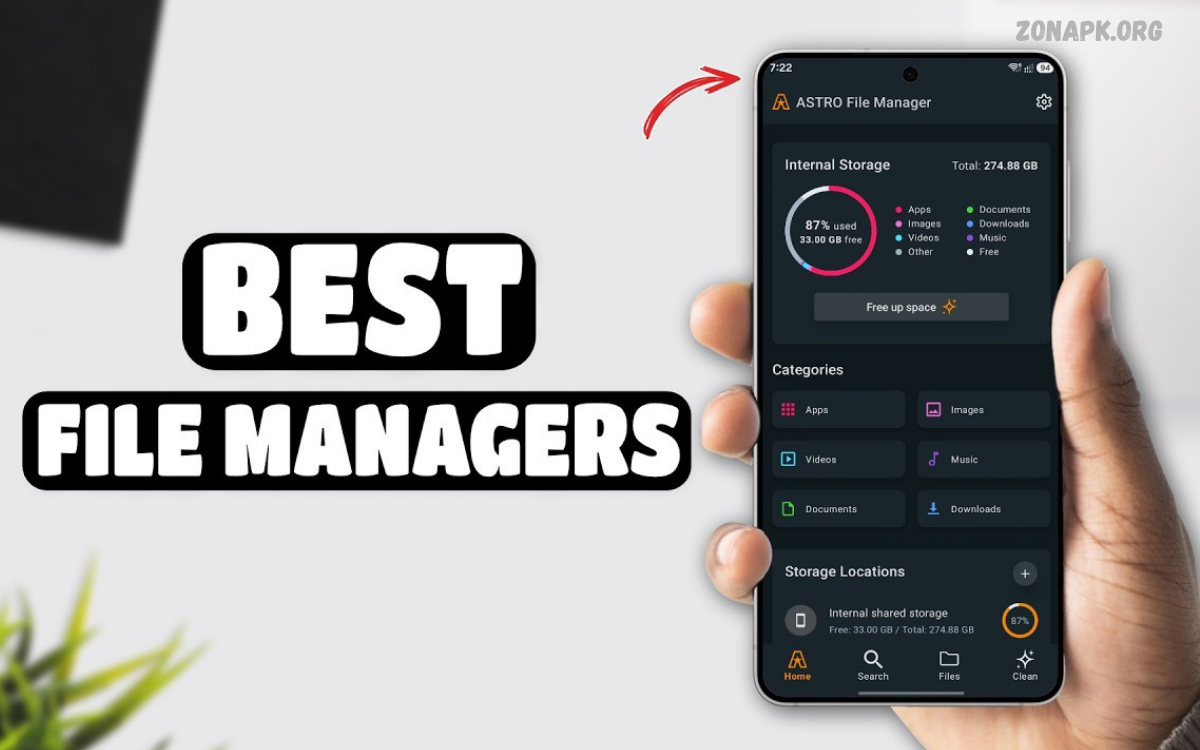
The Best File Manager Apps help Android users organize files, manage downloads, browse folders, and transfer documents easily. These apps give you easy access to photos, videos, music, PDFs, and other important files.
A reliable file manager improves everyday productivity by keeping digital content organized. Whether you use your smartphone for studying, gaming, business, or entertainment, the right application makes file management simpler and faster.
What Are File Manager Apps?
File manager apps let you browse, copy, move, rename, delete, and share files on Android devices. They let users explore internal storage, supported memory cards, and folders created by different apps.
The Best File Manager Apps also offer useful features such as file searching, archive extraction, cloud integration, and storage analysis. These functions help users locate important documents and manage their digital content from one convenient interface.
Why Use the Best File Manager Apps?
A good file manager saves time when searching for downloaded documents, photographs, videos, and other stored content. Instead of opening several applications, users can browse different folders and organize files from one place.
File managers also help users understand how storage space is being used. By reviewing large files and unnecessary downloads, you can identify content that may be safe to remove and keep your device better organized.
Google Files
<text></text>
Google Files, commonly called Files by Google, is a popular Android application for everyday file management. It provides a straightforward interface for browsing downloads, images, videos, documents, and other stored content.
The application also offers storage suggestions that help users review unnecessary files. Its simple design makes it suitable for beginners who want convenient file browsing without learning complicated settings or advanced management tools.
Solid Explorer
Solid Explorer is an advanced file manager designed for users who want greater control over their files. Its dual-pane interface helps users view two storage locations and transfer content between folders more conveniently.
The application also offers archive management, customization, and support for compatible network or cloud storage services. Some features may require payment, making it important to review the current pricing and available tools before choosing it.
X-plore File Manager
X-plore File Manager is known for its dual-pane layout and extensive file-browsing capabilities. Users can navigate different storage locations, copy files, inspect folders, and manage supported archives through its detailed interface.
This application is particularly useful for people who regularly transfer files between folders or devices. Beginners may need time to understand its many options, but experienced users can benefit from its flexible navigation and advanced tools.
MiXplorer
MiXplorer is a customizable file manager that provides numerous tools for managing digital content. Depending on the version, its features may include tabbed browsing, archive handling, storage navigation, and connections to compatible services.
Its flexible interface makes it attractive to users who prefer advanced controls and personalized settings. Always verify the application’s authenticity and download it from a trusted source before installation, especially when different distributions are available.
Total Commander
Total Commander is a feature-rich file manager available for Android and other platforms. Its dual-panel interface makes copying, moving, and organizing files between locations easier, particularly when working with large collections of documents or media.
The application also supports various file operations and compatible plugins for additional functionality. Its interface may look less modern than some alternatives, but its practical tools make it a useful option for users who prioritize functionality.
Samsung My Files
Samsung My Files is the built-in file manager available on many Samsung Galaxy devices. It provides access to downloads, documents, photographs, videos, and supported external storage through a familiar interface.
The application is a convenient choice for Galaxy users who prefer not to install additional software. Available features depend on the device and software version, so users with advanced requirements may want to compare other file managers.
FX File Explorer
FX File Explorer offers a clean interface alongside useful file-management capabilities. Depending on its version, users can browse folders, organize files, manage supported archives, and access compatible network storage locations.
It may suit people who regularly work with documents, media collections, or multiple storage locations. Some advanced features may require payment, so check the current feature list before deciding whether it meets your requirements.
Best File Manager Apps for Cloud Storage
Cloud-compatible file managers help users access documents stored online alongside files saved locally. Depending on the application, supported services may include Google Drive, Dropbox, OneDrive, or compatible network storage systems.
Cloud integration is especially helpful for people who use multiple devices for work or study. Check which providers are supported and review the requested permissions before connecting an account containing private or confidential information.
Best File Manager Apps for SD Cards
A file manager with SD card support makes it easier to move photographs, videos, music, and documents between internal and removable storage. This can help users free internal space when their Android device supports a compatible memory card.
Not every Android phone includes a memory card slot, and some folders cannot be moved because of system restrictions. Before transferring files, check the destination’s available space and keep backups of important documents and photographs.
Best File Manager Apps for ZIP Files
Archive management allows users to open supported compressed files and extract their contents without installing a separate utility. Many file managers support ZIP archives, while compatibility with RAR and other formats varies by application.
This feature is useful when downloading document collections, sharing multiple files, or organizing project materials. Be cautious with archives from unknown sources, and verify the sender before opening suspicious files or unfamiliar attachments.
Important Features to Consider
The most useful file manager features include searching, organizing folders, sorting, copying, moving, renaming, and deleting. These basic tools make everyday tasks easier and help users keep their digital content organized.
Advanced features may include dual-pane browsing, cloud access, archive extraction, storage analysis, and network transfers. Choose an app based on your actual needs rather than one with the most features.
Read Also: Best Weather Apps: Top Apps for Accurate Forecasts
How to Choose the Right File Manager
Start by identifying the tasks you perform most frequently on your Android device. Files by Google or a built-in file manager may be enough for simple browsing, downloads, and basic storage organization.
If you need advanced transfers, customization, or network connections, compare apps like Solid Explorer, X-plore, and Total Commander. Consider compatibility, pricing, ease of use, privacy, and recent updates before deciding.
File Manager Security and Privacy
File managers may require storage permissions to perform their main functions, but users should understand what they are approving. Download applications from trusted sources and be cautious when a permission request appears unrelated to file management.
Protect private documents with your device’s security features and review files before deleting or sharing them. When using cloud storage, check account permissions and avoid sharing confidential documents through public links or unfamiliar services.
File Manager Apps vs Built-In Tools
Built-in Android file managers are often sufficient for browsing folders, managing downloads, and organizing documents. They are convenient because they are already available on many devices and usually integrate well with the manufacturer’s software.
Third-party applications may offer additional customization, archive tools, advanced navigation, and network storage connections. However, installing another application is unnecessary when your existing file manager already provides the features you need.
Tips for Organizing Android Files
Create folders for documents, study materials, photographs, work projects, and downloaded content. Use clear filenames and consistent naming patterns so you can identify important files quickly without opening every document individually.
Review your downloads regularly and remove files only after confirming their contents. Back up important photographs and documents, and avoid deleting unfamiliar system folders because they may contain data required by installed applications.
Common File Manager Problems
Sometimes a file manager cannot open, move, or delete a particular file because of Android restrictions, insufficient storage, or missing permissions. Checking the application’s settings and updating it may help resolve common problems.
If the issue continues, restart the application or device and check whether another application is using the file. Avoid changing protected system files, and consult the developer’s support information when a problem persists.
Best File Manager Apps for Different Users
Beginners generally benefit from simple applications with clear menus and reliable search tools. Files by Google and built-in options such as Samsung My Files are suitable starting points for everyday file browsing and organization.
Advanced users may prefer Solid Explorer, X-plore File Manager, MiXplorer, or Total Commander. These applications offer different combinations of advanced navigation, customization, and file operations, so the best choice depends on your preferred workflow.
Future of File Manager Apps
File manager applications continue to evolve as smartphones store more documents, photographs, videos, and application data. Improved search, storage analysis, and cross-device organization may make managing digital content more convenient.
Artificial intelligence may also help categorize files or locate relevant documents, although privacy will remain important. Users should choose apps that explain their data practices, stay compatible with Android, and offer transparent permission controls.
Frequently Asked Questions
Which Are the Best File Manager Apps for Android?
Popular options include Files by Google, Solid Explorer, X-plore File Manager, MiXplorer, Total Commander, and FX File Explorer. Your best choice depends on the features you need and what your device supports.
Is Files by Google a Good File Manager?
Yes, Files by Google is a useful option for browsing files, managing downloads, and reviewing storage suggestions. Its straightforward interface suits beginners and general Android users.
Can File Manager Apps Increase Storage?
No, file manager applications cannot increase a phone’s physical storage capacity. They can help you identify unnecessary files and organize content more effectively.
Are File Manager Apps Safe?
File managers can be safe if you get them from trusted sources and use them with appropriate permissions. Before installing, check the developer, privacy policy, update schedule, and requested permissions.
Which File Manager Supports ZIP Files?
Many file managers support opening and extracting ZIP archives. Support for RAR and other compressed formats varies between applications.
Do I Need a Third-Party File Manager?
No, most Android users don’t need a third-party file manager. Your phone’s built-in application may already support browsing, copying, moving, renaming, and deleting files.
Conclusion
The Best File Manager Apps make it easier to organize files, browse folders, transfer documents, and manage available storage. Files by Google is a practical option for everyday tasks, while Solid Explorer, X-plore, and Total Commander offer alternatives for advanced users.
Before choosing an application, compare its features, compatibility, privacy practices, and pricing. The right file manager should simplify daily tasks, protect your personal information, and help you keep your Android device organized.

1 Comment
Pingback: Best Video Editing Apps: Top Tools for Creating Professional Videos - Zonapk