
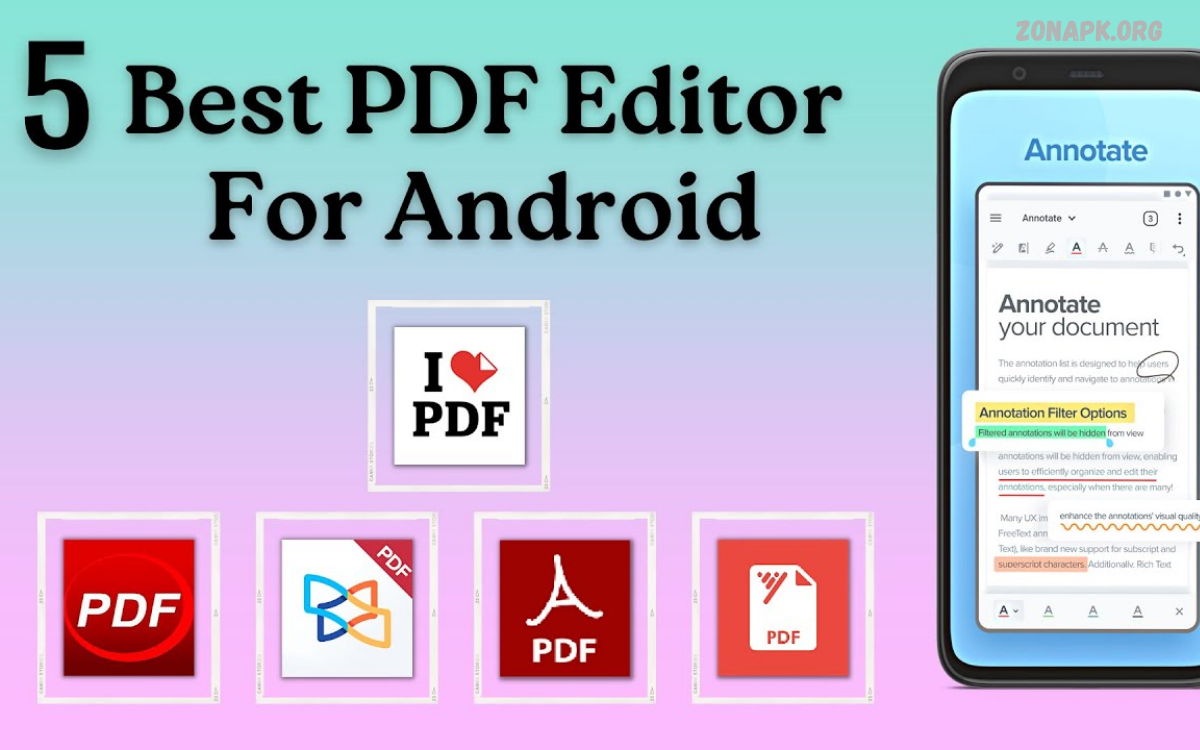
PDF files are widely used for school assignments, office documents, business reports, digital forms, and personal records. A reliable PDF editor makes it easier to update text, add comments, sign documents, complete forms, and organize pages without recreating an entire file.
Choosing the right application depends on your requirements, device, budget, and preferred features. Some apps focus on reading and annotating documents, while others provide advanced editing, optical character recognition (OCR), file conversion, and document security.
What Are PDF Editor Apps?
PDF editor apps are software tools designed to create, modify, annotate, sign, and organize Portable Document Format files. Depending on the app, users can edit existing text, insert images, highlight key information, rearrange pages, and fill out digital forms.
Unlike basic PDF readers, advanced editors let users change document layouts and replace existing content. Some applications also support cloud storage, collaboration, document scanning, and conversion between PDF and Microsoft Office formats.
Why Choose the Best PDF Editor Apps?
The Best PDF editor apps save time by letting users make quick changes directly in a document. Instead of printing a file, correcting it manually, and scanning it again, users can edit supported content digitally. This approach reduces unnecessary paperwork and makes document management more convenient.
A good PDF editor can also improve productivity by combining several tools in one place. Users can sign contracts, complete application forms, merge documents, add notes, and share updated files from the same interface. Choosing an app with the right features simplifies everyday tasks without paying for tools you rarely use.
Adobe Acrobat Reader: A Popular PDF Solution
Adobe Acrobat Reader is a widely recognized application for opening, reading, annotating, and signing PDF documents. It supports common tasks such as highlighting text, adding comments, filling out forms, and sharing files. Its familiar interface makes it a practical choice for people who regularly receive PDFs from schools, offices, and businesses.
Advanced editing features may require a paid Adobe Acrobat plan, depending on the platform and task. Users who only need to view documents, add comments, or complete forms may find the free features sufficient. People who frequently edit existing text, convert documents, or use advanced PDF tools should compare plans before subscribing.
Foxit PDF Editor: Useful Tools for Everyday Work
Foxit PDF Editor provides a range of tools for editing and managing PDF documents. Depending on the edition, users can modify text, add images, annotate pages, complete forms, sign documents, and organize files. Its range of document tools makes it worth considering for people who work with PDFs regularly.
Foxit offers products for different devices and professional needs, though features and pricing vary by edition. Some users may prefer its document-focused interface and editing options, while others may need a simpler reader. Before choosing Foxit, review its current feature list and confirm that the version supports your operating system and intended tasks.
Xodo PDF Editor: A Convenient Option for Document Tasks
Xodo is a PDF tool that supports document viewing, annotation, form filling, and other PDF-related tasks across supported platforms. It can help students review notes, employees comment on reports, and individuals complete digital paperwork. Its available features depend on the product version and the tools offered through its current service.
Users should check whether their preferred editing functions are included in the free experience or require a subscription. Basic annotation needs may not justify paying for a full editing package, while frequent document editing may benefit from a broader set of tools. Xodo is worth comparing with other editors when convenience and everyday document handling are priorities.
PDFgear: An Option for Budget-Conscious Users
PDFgear offers PDF tools designed for common document tasks, including editing, annotation, conversion, and file organization on supported platforms. It has attracted attention from users looking for useful PDF functions without immediately committing to a paid subscription. Its actual capabilities depend on the device and version being used.
Although a low-cost or free editor can be appealing, users should still review its privacy information, supported formats, and export options. Some advanced features may differ between desktop and mobile versions. Testing the application with a sample document is a sensible way to confirm that it can handle your everyday requirements.
Smallpdf: Simple Online PDF Tools
Smallpdf provides a collection of browser-based PDF tools, including options for compression, conversion, merging, splitting, and other document tasks. It can be particularly useful for people who need to process files quickly without installing a large desktop application. Its straightforward workflow suits occasional PDF tasks and general document management.
Some functions or usage limits may require a paid plan, and availability can differ between web and mobile experiences. Because online tools require file uploads, users should review privacy policies and avoid submitting confidential documents unless the service meets their security requirements. Smallpdf is a useful option when convenience and file conversion are more important than extensive offline editing.
Sejda PDF Editor: Editing Through a Browser
Sejda PDF Editor offers browser-based tools for editing and managing PDF files. Depending on the available tool, users can modify supported text, add annotations, insert signatures, organize pages, and perform other document operations. Its online interface can be convenient when you can’t install new software on your computer.
Free usage may have restrictions involving document size, task frequency, or available features. Users with frequent editing requirements should compare the free limits with the paid options. For sensitive documents, consider the service’s privacy terms and whether a desktop workflow would be more appropriate.
PDF Expert: A PDF Tool for Apple Devices
PDF Expert is a document application associated with the Apple ecosystem, including supported Mac, iPhone, and iPad experiences. It offers tools for reading, annotating, signing, and working with PDF documents, with advanced editing features available depending on the product and plan. It may suit users who prefer managing documents across compatible Apple devices.
Its usefulness depends on the features you need and the version available for your device. Someone who mainly reads and marks up documents may require fewer features than a professional editing lengthy reports. Review current pricing, device compatibility, and synchronization options before making it your primary PDF application.
Nitro PDF: Tools for Professional Document Work
Nitro PDF products are designed for users who need document editing, conversion, review, and productivity tools. Depending on the edition, features may include text editing, page management, digital signatures, and collaboration-related functions. These capabilities can support office teams and professionals who process PDFs as part of their daily work.
Evaluate Nitro when document handling is a regular business requirement rather than an occasional task. Organizations should compare licensing, security features, supported platforms, and administrative controls before adopting it. Individual users should also confirm whether the chosen edition includes the tools they expect to use.
Microsoft Word: Editing PDF Content Through Conversion
Microsoft Word can open many PDF files by converting them into an editable Word document. This approach is useful when a user needs to rewrite paragraphs, update headings, correct spelling, or substantially revise a document. After editing, the file can be saved or exported back into PDF format.
PDF conversion does not always preserve the original layout perfectly. Complex tables, scanned pages, columns, charts, and unusual fonts may require manual adjustments. Word is a practical choice for text-heavy documents, but a dedicated PDF editor may be better when preserving the original page design is essential.
Best PDF Editor Apps for Android
Android users can choose from PDF applications that support reading, highlighting, signing, form filling, and document organization. Adobe Acrobat Reader, Foxit PDF Editor, Xodo, and other compatible tools offer different feature sets. The best option depends on whether you need simple annotations, full editing, or advanced file conversion.
Before installing an Android PDF editor, review its permissions, recent ratings, update history, and subscription terms. Check whether it works offline if you frequently travel or have limited internet access. A mobile-friendly interface, reliable saving, and convenient file sharing can make a significant difference when editing documents on a phone.
Best PDF Editor Apps for iPhone and iPad
iPhone and iPad users can access PDF tools to read, mark up, sign, and organize documents. Apple’s built-in Markup features work well for basic annotations, while third-party apps offer extra editing, conversion, and document management options. Applications such as Adobe Acrobat Reader and PDF Expert may be worth comparing based on device compatibility and required features.
When choosing an iOS PDF editor, consider how well it integrates with the Files app and your preferred cloud storage service. If you use an iPad for school or professional work, tools for highlighting, handwritten notes, and document review may be especially useful. Check which functions are free and which require a subscription before moving your entire workflow into one application.
Best PDF Editor Apps for Windows
Windows users have access to dedicated desktop PDF editors, online services, and office applications that can work with PDF files. Adobe Acrobat, Foxit PDF Editor, Nitro PDF, and PDFgear are examples worth evaluating for different editing needs. Desktop software may be preferable for large files, complex layouts, batch processing, and work that requires frequent access to local documents.
The right Windows editor should support your file formats, provide dependable export options, and run smoothly on your computer. Users who work with confidential business files may prefer a trusted desktop workflow, subject to their organization’s security requirements. Compare licensing and system requirements before purchasing a professional editing package.
Best PDF Editor Apps for Mac
Mac users can work with PDFs through Preview, dedicated PDF applications, and browser-based editing services. Preview includes useful built-in tools for viewing, annotating, signing, and performing certain page operations. For more extensive editing, applications such as PDF Expert, Adobe Acrobat, or Foxit may provide additional capabilities depending on the version.
Choosing a Mac PDF editor requires balancing ease of use, advanced functionality, and cost. If you mainly sign documents or add comments, Preview may be enough for everyday work. If you need to change existing text, convert complex files, or manage large document collections, compare dedicated editors to find a solution that supports your workflow.
Best Free PDF Editor Apps
Free PDF editor apps help people handle everyday documents without paying for a subscription. Depending on the product, free tools may support annotation, form filling, basic signing, page rotation, or simple document conversion. Options such as PDFgear, Adobe Acrobat Reader, and built-in platform tools can be starting points for comparing free features.
However, free does not always mean unrestricted editing. Some apps limit the number of tasks, put advanced features behind paid plans, or require an account for certain functions. Read the current plan details carefully and test the functions you need before depending on an app for schoolwork, professional documents, or important personal records.
Best PDF Editor Apps for Students
Students frequently use PDFs for textbooks, lecture notes, research papers, worksheets, and assignments. An effective student PDF editor should make it easy to highlight important passages, add comments, organize files, and sign or complete forms. A good annotation interface can help students keep their study materials organized and accessible.
For budget-conscious students, free annotation tools or built-in document features may be enough. If you need to edit existing text or convert scanned pages, look for compatible advanced features before choosing an app. Cloud synchronization can also be useful for accessing notes across a phone, tablet, and computer, provided the student’s privacy requirements are met.
Read Also: Best Camera Apps for Android: Top Picks for Stunning Photos
Best PDF Editor Apps for Business Professionals
Business professionals often work with proposals, invoices, contracts, reports, and client forms. A suitable PDF editor should support dependable text editing, digital signatures, page management, and document conversion. Teams may also benefit from commenting tools and collaboration features that make document review more organized.
For professional use, security and consistency matter as much as convenience. Before choosing a document platform, organizations should evaluate access controls, encryption, retention practices, compliance requirements, and licensing. An app that fits the team’s workflow can reduce repetitive tasks and make sharing approved documents easier.
Essential Features to Look for in a PDF Editor
Text editing is one of the most important features when choosing a PDF application. Users may also need annotation, page insertion, page deletion, merging, splitting, form filling, and signature tools. If you frequently handle paper documents, scanning and OCR can help turn printed text into searchable content, although recognition accuracy depends on image quality and language support.
Other useful features include cloud integration, batch processing, file compression, password protection, and export to common document formats. Not every user needs every feature, so prioritize tools that solve your actual problems. Test export quality and saving behavior before adopting an editor to avoid formatting issues later.
How to Edit a PDF File Using an App
Start by installing a trusted PDF editor or opening a reputable online tool. Open the PDF from your device, cloud storage, or file manager, then select the function you need, such as annotation, text editing, page organization, or form filling. Follow the application’s instructions and review any changes before saving the updated document.
Once editing is complete, save a separate copy when the original file needs to remain unchanged. Reopen the saved document to confirm that the text, images, signatures, and page layout appear correctly. If you’ll share the file, check the recipient’s requirements and export it in the appropriate format to avoid compatibility issues.
How to Edit Text in an Existing PDF
Editing existing text requires an application that specifically supports modifying PDF content. Open the file, choose the text-editing feature, and select the section you want to change. Depending on the document, you may be able to correct words, replace paragraphs, adjust formatting, or add new content.
Some PDFs contain scanned images rather than editable text, which means a standard text editor may not recognize their contents. In that situation, OCR may be required to convert the page into searchable text before editing. Always check the finished document because font substitutions and layout changes can affect the appearance of the original file.
How to Sign PDF Documents Digitally
Many PDF editors offer tools to add signatures to digital documents. Depending on the application, you may be able to draw a signature, type your name, insert a signature image, or use a supported digital certificate. These options work well for forms, approvals, and routine paperwork that doesn’t require a handwritten paper copy.
An inserted signature image and a certificate-based digital signature are not the same. Their legal effect and security properties can differ according to the document, jurisdiction, and signing method. For important contracts or regulated paperwork, confirm the recipient’s requirements before choosing a signature tool.
How to Convert PDF Files to Other Formats
PDF conversion tools can turn documents into formats such as Word, Excel, PowerPoint, or image files, depending on the application. This can make content easier to revise, analyze, present, or reuse in another project. Conversion is especially helpful when a PDF contains information that needs substantial editing in another application.
Conversion quality depends on the original document’s structure and the software’s capabilities. Tables, columns, scanned text, and unusual fonts may not convert perfectly, so the resulting file should be reviewed before use. If formatting is important, keep the original PDF and compare it with the converted version.
PDF Security and Privacy Considerations
PDF editors may handle sensitive information, including personal records, financial documents, school forms, and business contracts. Before uploading a file to an online editor, review its privacy policy, data handling practices, retention settings, and available security controls. Use trusted applications and avoid sharing confidential documents through unfamiliar websites.
Password protection and encryption can add security, but options vary by product and file format. A password alone does not guarantee complete protection if it is weak or shared insecurely. For confidential work, follow your organization’s policies, use appropriate access controls, and confirm that the selected application meets the required security standards.
Common Mistakes to Avoid When Choosing a PDF Editor
One common mistake is choosing an app based only on its popularity or advertised features. A tool may be excellent for annotations but unsuitable for editing existing text or preserving complex layouts. Another mistake is overlooking subscription limits, platform compatibility, export restrictions, or account-required features.
Users should also avoid uploading sensitive documents to unverified services and assuming that every PDF can be edited in the same way. Some files are scanned images, some contain restrictions, and others use complex formatting. Test the application with representative files and confirm it performs the tasks you need before adding it to your regular workflow.
How to Choose the Right PDF Editor App
Begin by identifying your main requirements. If you only read documents, add highlights, and sign forms, a basic or free tool may be enough. If you regularly edit text, convert files, manage large documents, or process business paperwork, a dedicated editor with advanced features may offer better value.
Next, compare the supported devices, subscription costs, security features, ease of use, and export quality. Consider whether you need offline access or synchronization between multiple devices. The right choice is not necessarily the app with the most features; it is the one that handles your most important tasks reliably and fits your budget.
Frequently Asked Questions
Which PDF editor apps are best?
Popular options to compare include Adobe Acrobat, Foxit PDF Editor, Xodo, PDFgear, Smallpdf, Sejda, PDF Expert, and Nitro PDF. Each offers a different combination of editing, annotation, conversion, and document management features. Your ideal choice depends on your device, budget, and what you need to do.
What is the best free PDF editor app?
The best free option depends on the tasks you need to complete. PDFgear and built-in platform tools are worth evaluating, while Adobe Acrobat Reader is useful for reading, annotating, and signing documents. Check current free-plan limits because advanced editing and conversion features may require payment.
Can I edit PDF files on my phone?
Yes, many Android and iPhone applications support PDF annotation, form filling, signatures, and other document tasks. Some apps also offer text editing or conversion features, depending on the platform and subscription. Choose a mobile editor that saves files reliably and supports your preferred storage services.
Can I edit PDF text without converting the file?
Yes, if your PDF editor supports direct text editing. You can open the document, select the text-editing tool, and make supported changes without converting the file to a Word document first. Scanned PDFs may require OCR, and complex layouts may need additional adjustments.
Are online PDF editors safe?
Online PDF editors can be useful, but safety depends on the service’s security practices, privacy policy, and how it handles uploaded files. Review its data retention and deletion policies before uploading documents. For highly confidential information, consider an approved offline application instead.
Which PDF editor is best for students?
Students may benefit from applications that support highlighting, comments, note-taking, and easy file organization. A free tool may be sufficient for reading and marking up assignments, while advanced editing may require a paid product. Device compatibility and cloud access are also useful considerations.
Can PDF editor apps convert PDF files into Word documents?
Many PDF editors support conversion to Word, but availability depends on the app and subscription. Conversion may require formatting adjustments, especially if the PDF contains tables, columns, or scanned pages. Review the converted document before submitting or sharing it.
Do PDF editor apps support electronic signatures?
Many PDF editors let users add a typed, drawn, or image-based signature. Some professional services also support certificate-based digital signatures and additional verification features. Check the recipient’s signing requirements, as different signature methods offer different levels of assurance.
Do I need to pay for a PDF editor?
Not necessarily. Free tools may cover reading, annotating, filling out forms, and basic document management. A paid editor may be worthwhile if you frequently need advanced text editing, OCR, batch processing, conversion, or professional document features.
Can I use one PDF editor on multiple devices?
Some PDF apps support multiple platforms and cloud sync, letting you access documents across compatible devices. However, feature availability, account requirements, and subscription terms can differ. Check whether your chosen plan supports the devices you use before purchasing it.
Conclusion
The Best PDF Editor Apps make document management easier by bringing editing, annotation, signing, conversion, and page organization into convenient digital workflows.
Before you decide, consider your budget, device compatibility, privacy needs, and the complexity of your PDF files. Students may prioritize annotation, while professionals may need advanced editing and security controls

1 Comment
Pingback: Best Travel Apps: For Easy Trip Planning and Booking - Zonapk