

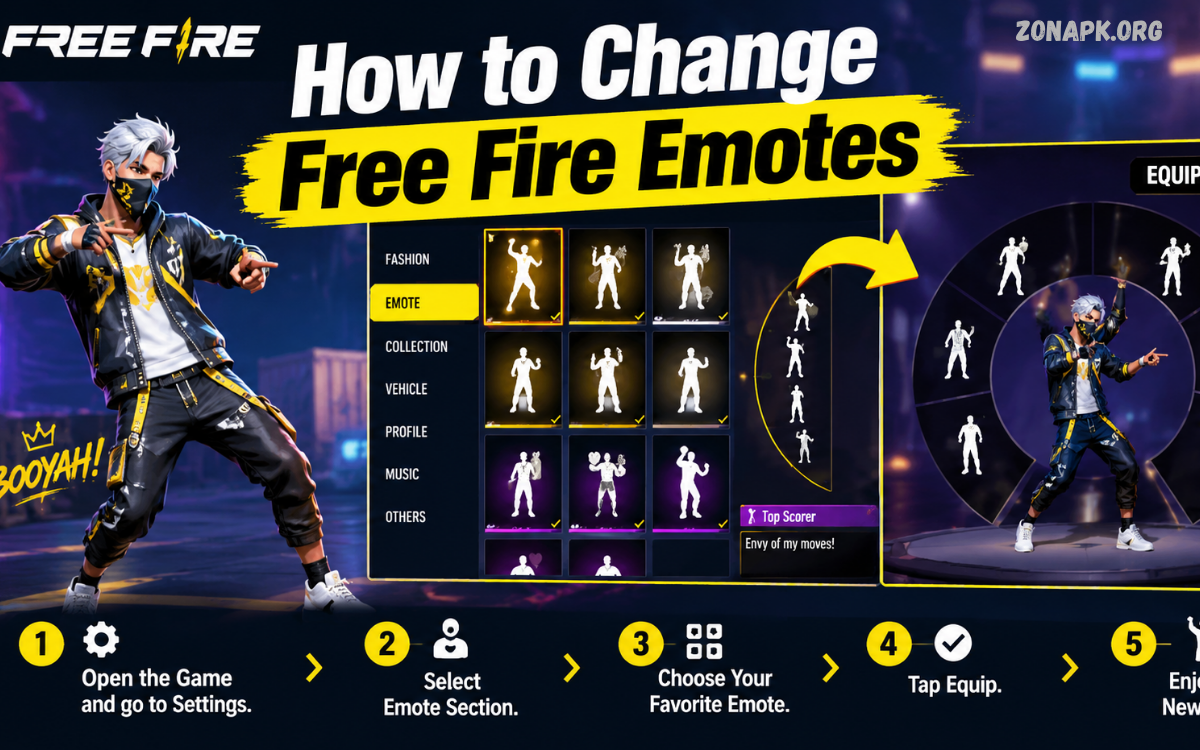
Free Fire emotes let players express reactions, celebrate victories, communicate with teammates, and add personality to matches. Whether you want to use a new dance, celebration, funny reaction, or special event emote, changing your equipped emotes is a simple process. Learning how to change Free Fire emotes helps you customize your character and keep your favorite reactions ready during matches.
Garena regularly introduces new emotes through events, bundles, rewards, collaborations, and other in-game features. Players can collect multiple emotes but usually need to equip specific emotes before using them in a match. This guide explains how to change Free Fire emotes step by step, how to equip different emotes, how to use them during gameplay, and what to check when an emote does not appear.
What Are Free Fire Emotes?
Free Fire emotes are animated character reactions that players can activate during gameplay. An emote can make your character perform a dance, gesture, celebration, greeting, or other animation. Emotes are mainly cosmetic features, meaning they do not directly increase weapon damage, movement speed, armor, or other combat statistics.
Players can collect different emotes and select which ones appear in their available emote slots. Some emotes may be permanent, while others can be obtained through limited-time events or special rewards. Because the collection can become large, knowing how to change Free Fire emotes makes it easier to switch between your favorite animations.
Why Change Free Fire Emotes?
Changing emotes allows you to personalize your gameplay experience. A player may prefer celebration emotes after winning a fight, while another player may choose funny or friendly reactions when interacting with teammates. Switching your equipped emotes also lets you use newly collected animations without removing them from your overall collection.
Different situations can also make certain emotes more useful for communication. Players often use emotes to greet squad members, celebrate successful plays, react to opponents, or create memorable moments. Since emotes are separate from weapons and character abilities, changing them is primarily a customization feature.
How to Change Free Fire Emotes
The process for changing emotes is straightforward. Before starting, make sure Free Fire is installed and your account is logged in. The exact interface can vary slightly between Free Fire versions, updates, regions, or game modes, but the general process remains similar.
Open Free Fire and reach the main lobby. From the lobby, look for the Collection, Vault, or customization section, depending on the version of the game installed on your device. Open the section containing your cosmetic items and locate the emote option.
Step 1: Open Free Fire
Launch Free Fire from your device and wait for the main lobby to load. Make sure your internet connection is stable if the game requires an online connection to load your account information, inventory, and current items.
Once the lobby appears, look around the interface for the customization or collection menu. Free Fire periodically changes its interface, so the name or position of a button can differ after major updates. Focus on finding the section where character cosmetics and emotes are managed.
Step 2: Enter the Collection or Vault Section
Tap the Collection or Vault option available in your lobby. This section normally contains different categories of cosmetic items that belong to your account.
Look through the available categories until you find Emotes. Selecting the emote category should display the emotes currently available in your collection. Locked or unavailable items may also appear, depending on the interface and account inventory.
Step 3: Select the Emote Section
Open the Emotes category to view your available animations. Your collection may contain several types of emotes, including permanent emotes, event rewards, special animations, and other cosmetic reactions.
Browse through the list and choose the emote you want to equip. If you recently received a new emote, check the collection carefully because the newest item may not always appear at the beginning of the list.
Step 4: Choose an Emote Slot
Free Fire provides designated slots for equipped emotes. Select the slot containing the emote you want to replace. The game should then provide an option to choose another emote from your collection.
Select your preferred emote and confirm the change if the game displays a confirmation option. The selected animation should now occupy that emote slot.
Step 5: Save or Confirm the Selection
Some versions of the game apply the change immediately, while others may require you to confirm the selection. Check the screen for a Equip, Replace, Confirm, or similar option.
After completing the selection, return to the lobby and verify that the new emote appears in your equipped list. If the game saves the selection automatically, no additional action may be required.
How to Equip Multiple Free Fire Emotes
Players who own several emotes can equip multiple animations in their available slots. This makes it possible to carry different reactions into a match instead of repeatedly returning to the collection menu.
To equip multiple emotes, open the emote customization area and select each available slot individually. Choose a different emote for each slot, then confirm or save the changes if required. Arrange the slots according to the animations you use most frequently.
How to Replace an Existing Free Fire Emote
Replacing an existing emote follows almost the same process as equipping a new one. Open the emote management section, select the slot containing the animation you no longer want, and choose another emote from your collection.
The previous emote remains part of your collection unless it is a temporary item or otherwise subject to an expiration condition. Replacing an equipped emote normally changes only the selected slot, allowing you to switch back later if you change your preference.
How to Use Free Fire Emotes During a Match
After equipping your preferred emotes, enter a supported game mode and locate the emote button on the gameplay interface. Depending on the game version and device layout, the button may appear in a different position.
Tap the emote button to display your equipped animations. Select the desired emote, and your character should perform the corresponding animation. Avoid using emotes at unsafe moments because the animation can distract you from nearby opponents or ongoing combat.
How to Change Emotes Before a Match
Changing your emotes before entering a match is useful when you want to prepare a specific collection for a particular gaming session. Return to the main lobby and open the customization or collection area.
Select the emote section, replace the animations you do not want, and equip your preferred choices. Once the changes are saved, they should be available when you enter the next compatible match.
How to Change Free Fire Emotes on Mobile
Most Free Fire players access the game through Android or iOS devices. The basic emote-changing process remains similar on mobile, although button positions can differ according to screen size, interface updates, and game settings.
Launch Free Fire, open the collection or vault area, find the emote category, select an equipped slot, and choose another available emote. Confirm the selection when required. Return to the lobby and check the equipped emote list before starting a match.
How to Change Free Fire Emotes in Free Fire MAX
Free Fire MAX provides a similar customization experience, although its interface and visual presentation can differ from standard Free Fire. Players can access their cosmetic inventory and manage available emotes through the relevant customization menus.
If you use Free Fire MAX and cannot find the exact menu described in this guide, check the current lobby interface for the collection, vault, or customization option. Menu names and layouts can change after updates, but the main concept remains selecting an emote slot and replacing it with an available animation.
What to Do If a Free Fire Emote Does Not Appear
Sometimes a newly obtained emote may not immediately appear where you expect it. First, return to the collection area and check whether the item was successfully added to your account. Make sure you are viewing the correct emote category.
If the emote was obtained through an event or reward system, check whether the reward has been claimed successfully. Some rewards may require an additional claim step before becoming available in the inventory. Restarting the game can also help refresh account inventory information after a completed reward or update.
Why You Cannot Use a Free Fire Emote
There can be several reasons why an emote cannot be used. The item may not be equipped, may be unavailable in a particular mode, or may have been associated with a limited-time event. Game updates can also change how certain cosmetic features work.
Check your collection and equipped slots first. If the emote appears in your collection but cannot be selected during gameplay, review the current game mode and interface. Avoid using unofficial tools or modified game files to unlock unavailable emotes because such methods can create account-security and gameplay risks.
How to Get More Free Fire Emotes
Free Fire offers various ways for players to obtain cosmetic items. Depending on current availability, emotes can appear through events, missions, rewards, special offers, collaborations, or other official in-game activities.
Availability changes over time, so check the official in-game event and reward sections for current opportunities. Some emotes may be obtainable only during specific periods. Reading event requirements before participating can help you understand exactly what is required to receive an item.
Free Fire Emotes and Events
Events are an important part of Free Fire’s cosmetic ecosystem. Limited-time events may introduce unique animations connected with seasonal campaigns, collaborations, celebrations, or special activities.
If you are interested in a particular emote, check its availability period and requirements. Some events may require completing missions, collecting specific items, or meeting other conditions. Once an event ends, the same emote may not remain available through the same method.
How to Organize Your Favorite Emotes
Players with large collections can make gameplay more convenient by organizing their most-used animations into accessible slots. Consider equipping emotes that you frequently use instead of filling every slot with animations you rarely activate.
For example, you could place a greeting emote in one slot, a celebration animation in another, and a favorite reaction in another. This setup reduces the time needed to find a particular animation during a match.
Tips for Using Free Fire Emotes
Use emotes at appropriate moments. They can be fun for social interaction, but activating an emote during combat can take your attention away from movement, positioning, and opponents. Treat emotes as cosmetic features rather than competitive tools.
Keep your favorite animations equipped before starting a match. If you regularly change your loadout, take a moment in the lobby to check your emote slots. This simple habit prevents situations where you enter a match expecting an animation that is no longer equipped.
Read Also: How to Use Free Fire Emotes: Complete Guide for Beginners
Can Free Fire Emotes Improve Gameplay?
Emotes do not directly improve core combat statistics. They are designed primarily for expression and customization rather than increasing a player’s damage, defense, or accuracy.
However, emotes can improve the social side of the game. Players can use them to celebrate achievements, communicate reactions, interact with teammates, and create entertaining moments. Their value is mainly visual and social.
Can You Change Free Fire Emotes Anytime?
In general, equipped emotes can be changed from the game’s customization or collection interface whenever the relevant feature is available. You do not normally need to permanently commit to an emote after equipping it.
If you collect a new animation, you can return to your emote slots and replace an existing selection. Your previously owned permanent emote should remain available in your collection unless the item has specific availability conditions.
Common Mistakes When Changing Free Fire Emotes
One common mistake is searching for the emote directly from the match interface instead of changing the equipped slots from the lobby. If an emote is owned but not equipped, it may not appear in your active emote selection during gameplay.
Another mistake is assuming that every cosmetic reward is automatically equipped. Receiving an emote does not necessarily mean it becomes an active selection. Always check your collection and equip the animation manually when necessary.
Free Fire Emote Settings
Free Fire provides customization options that allow players to manage cosmetic items according to their preferences. The available settings and menu locations can change as the game receives updates.
If you cannot find an option mentioned in an older tutorial, use the current game interface rather than relying on outdated screenshots. Major updates can reorganize menus, rename sections, or introduce new customization systems.
How to Change Free Fire Emotes After an Update
Game updates can change the appearance and location of customization menus. If you previously knew how to change Free Fire emotes but cannot find the same button after an update, check the main lobby and explore the current collection or customization sections.
Make sure your game has completed its update and that your account has fully synchronized with the game servers. If an item or menu remains missing after an update, check official game announcements or support information for details about the current version.
Are Free Fire Emotes Free?
Not every Free Fire emote is free. Some may be available through events, missions, rewards, or other no-cost opportunities, while others may require an in-game purchase or participation in a specific event.
Availability changes frequently. Instead of assuming that an emote is free because it appears in the collection, check its current acquisition method in the game. Never trust websites or applications claiming to provide unauthorized emotes through account modifications.
Avoid Unofficial Emote Unlockers
Players should avoid modified applications, unauthorized scripts, third-party unlockers, or websites claiming to add emotes directly to an account. These methods can expose account credentials, install unwanted software, or violate game rules.
The safest approach is to use the official Free Fire application and legitimate in-game systems. Cosmetic items should be obtained and equipped through supported game features rather than unauthorized modifications.
Frequently Asked Questions
How do I change Free Fire emotes?
Open Free Fire and go to the collection, vault, or customization section. Find the emote category, select the equipped emote slot you want to change, choose another available animation, and confirm the selection if required.
Why is my new emote not showing?
Check your collection to confirm that the emote was successfully received. If it came from an event, make sure the reward was claimed. You can also restart the game and check your inventory again.
Can I equip more than one emote?
Yes, Free Fire provides multiple emote slots, allowing players to equip several animations. The exact number and interface can vary depending on the current game version.
Can I change emotes during a match?
Emote selection is generally managed through the game’s customization system before gameplay. During a match, players typically use the emotes already equipped in their available slots.
Do emotes give players advantages?
Emotes are cosmetic animations and do not directly provide combat advantages such as increased damage, defense, or accuracy.
Can I get Free Fire emotes without paying?
Some emotes may be available through official events, missions, rewards, or other free opportunities. Others may require purchases or specific event participation. Always check the current in-game acquisition method.
Why did my emote disappear?
An emote may be temporarily unavailable because of an event ending, an inventory synchronization issue, or changes introduced by an update. Check your collection, restart the game, and review official information if the problem continues.
Can I change my emotes whenever I want?
You can generally change equipped emotes through the customization or collection interface. Simply select a different animation for the slot you want to replace.
Conclusion
Learning how to change Free Fire emotes is a simple way to personalize your character and make your matches more entertaining. The main process involves opening the collection or customization area, accessing the emote section, selecting an equipped slot, choosing another available animation, and confirming the change when necessary.
Free Fire regularly introduces new cosmetic content, so your collection can continue growing over time. Keep your favorite emotes equipped, check official events for legitimate rewards, and avoid unauthorized tools or modified applications. With the right emote setup, you can quickly access your preferred reactions and enjoy a more personalized Free Fire experience.

1 Comment
Pingback: Best Casual Clothes for Men: Complete Style Guide - Zonapk