

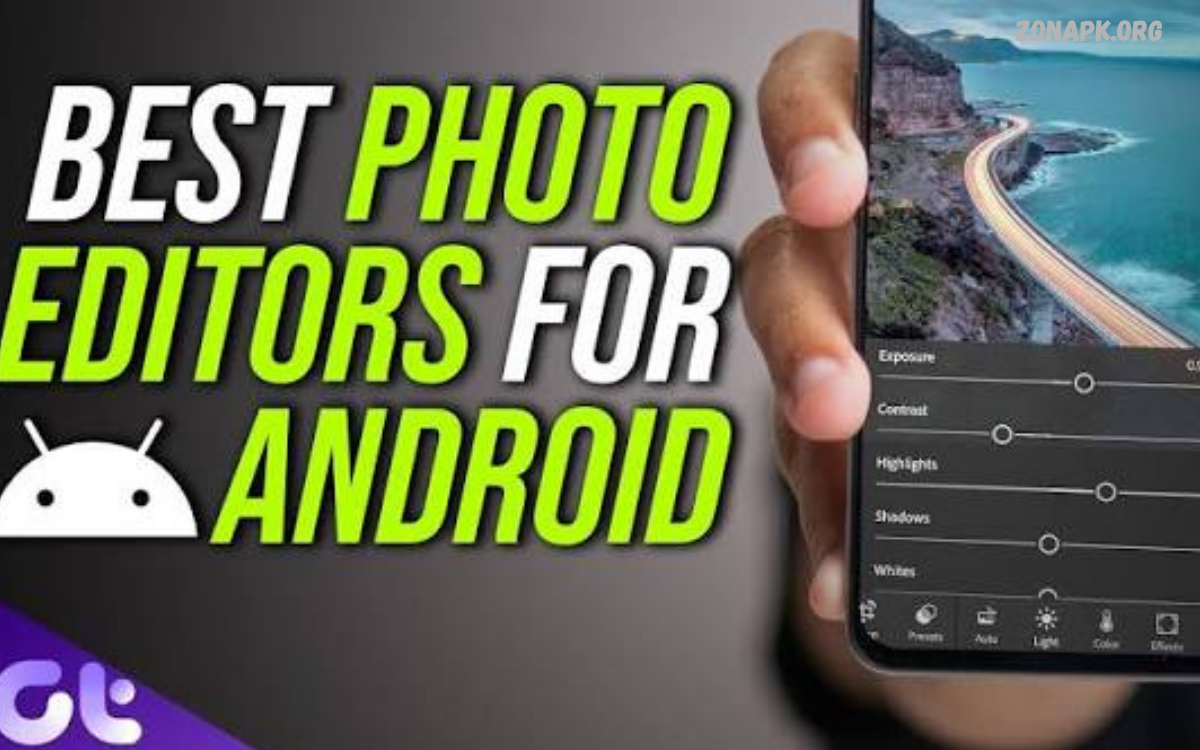
Smartphone photography has changed the way people capture, improve, and share images. Modern Android phones can produce sharp, detailed photos, but even the best camera cannot guarantee perfect lighting, balanced colors, or professional composition in every situation.
Choosing the right editing application can make a major difference in the final appearance of a photograph. Some apps focus on simple adjustments for beginners, while others provide advanced controls for photographers, content creators, bloggers, and social media users.
What Are Photo Editing Apps for Android?
Photo editing apps for Android are mobile applications designed to improve, modify, organize, or creatively transform digital photographs. Basic editors usually include options for cropping, rotating, resizing, brightness correction, contrast adjustment, saturation control, and filters. Advanced applications can provide selective adjustments, curves, masking, layers, background removal, object cleanup, RAW editing, and detailed color controls.
Android editors make professional-style editing accessible without requiring a computer. A user can capture a photograph, open it inside an editing application, make corrections, and export the finished image within minutes. This convenience makes mobile editing particularly useful for social media posts, online stores, websites, personal photography, school projects, and everyday image enhancement.
Why Use Photo Editing Apps for Android?
The biggest advantage of mobile photo editing is convenience. Android users can edit photographs wherever they are without transferring files to a desktop computer. Quick adjustments can correct common problems such as dark exposure, excessive highlights, weak colors, unwanted cropping, or distracting elements. Mobile editing also allows users to prepare photographs immediately for platforms that require specific dimensions or formats.
Another advantage is creative control. Modern applications offer presets, filters, typography, overlays, frames, effects, and advanced color tools that allow users to create different visual styles. Beginners can rely on automatic enhancements, while experienced users can manually adjust individual settings. The result is a flexible editing workflow suitable for casual photographers as well as users producing regular digital content.
Key Features to Look For
A good Android photo editor should provide essential adjustment controls without making the interface unnecessarily complicated. Exposure, brightness, contrast, highlights, shadows, saturation, temperature, tint, sharpness, cropping, and perspective correction are valuable tools for everyday photography. A clear interface also matters because users should be able to locate important controls quickly.
Advanced users may need additional features such as curves, selective editing, masking, layers, RAW support, noise reduction, healing tools, and detailed color grading. Export quality should also receive attention. An application that produces excellent previews but heavily compresses the final image may not be suitable for professional publishing. Checking resolution options, file formats, and quality settings can help protect image detail during export.
Best Uses for Android Photo Editors
Photo editors are useful for improving personal photographs, travel images, portraits, landscapes, food photography, product images, and social media content. Simple corrections can make an image appear cleaner without changing its original character. Cropping can improve composition, while exposure and color adjustments can restore balance when the original camera settings were not ideal.
Businesses and content creators can also use mobile editing applications for promotional graphics and product photography. Consistent editing helps maintain a recognizable visual identity across websites and social platforms. Android editors can also support quick content production when users need to publish photographs shortly after capturing them.
Editing Brightness and Exposure
Brightness and exposure adjustments are among the first tools users should learn. A photograph may appear too dark because of poor lighting or camera exposure, while a bright outdoor scene may contain overly strong highlights. Careful adjustment can reveal important details without making the image appear artificial. The goal should be a balanced result rather than maximum brightness.
Highlights and shadows provide more precise control than a simple brightness slider. Reducing highlights can recover visual information in bright areas, while increasing shadows can reveal details in darker regions. These adjustments are especially useful for photographs containing both bright skies and darker foreground subjects. Small changes usually produce more natural results than extreme corrections.
Improving Color and White Balance
Color has a major influence on the mood and realism of a photograph. Saturation can increase color intensity, but excessive saturation can create unnatural skin tones and overly strong backgrounds. Vibrance, when available, can provide a more controlled approach by emphasizing weaker colors while reducing the risk of overwhelming already intense tones.
White balance controls the overall color temperature of an image. A photograph captured under warm indoor lighting may look yellow or orange, while a shaded outdoor scene can appear unusually blue. Adjusting temperature and tint can restore a more natural appearance. Users should compare the edited image with the original regularly to avoid making unnecessary color changes.
Cropping and Composition
Cropping is one of the simplest ways to improve a photograph. Removing distracting edges can focus attention on the main subject and create stronger visual balance. Most Android editors provide standard aspect ratios for common social platforms, websites, profile images, and other publishing requirements.
Composition can also be improved by changing the position and size of the subject within the frame. A photograph does not always need aggressive editing to look professional. Sometimes a careful crop, straightened horizon, and small exposure correction can produce a greater improvement than multiple filters or effects.
Filters and Presets
Filters provide a quick way to create a consistent visual style. They can alter color, contrast, exposure, and tone through predefined settings. Filters are useful when users need to edit multiple photographs quickly, particularly for social media content or themed collections.
Professional editing requires moderation when using presets. A filter should support the photograph instead of hiding important details or creating unnatural colors. Many modern apps allow users to reduce filter intensity, making it easier to achieve a subtle effect. Saving customized presets can also speed up future editing sessions while maintaining consistency.
Background Removal and Replacement
Background removal has become an important feature in mobile image editing. Automated selection tools can identify subjects and separate them from their surroundings. This can be useful for profile graphics, product photographs, promotional images, thumbnails, and creative compositions.
Background replacement should be performed carefully because edges around hair, clothing, transparent objects, and fine details can be difficult to process accurately. A good editor should provide tools for refining selections when automatic results are imperfect. Natural lighting and shadows should also remain consistent when placing a subject over a new background.
Removing Unwanted Objects
Healing and object-removal tools can help clean up photographs by eliminating small distractions. Examples include minor marks, background objects, visual clutter, or unwanted spots. These tools generally work best when the unwanted area is relatively small and surrounded by similar textures.
Users should avoid excessive object removal because aggressive editing can make photographs look artificial. When removing an object, inspect the surrounding area carefully for repeated patterns, distorted textures, or visible editing artifacts.
Portrait Editing on Android
Portrait editing requires particular care because faces are highly sensitive to artificial adjustments. Basic improvements can include exposure correction, balanced skin tones, controlled contrast, and minor distractions removal. These changes can improve clarity while preserving the person’s natural appearance.
Advanced beauty effects should be used conservatively. Excessive smoothing or reshaping can remove natural facial detail and make an image appear unrealistic. A professional workflow focuses on lighting, color, sharpness, and composition before applying stronger effects.
Photo Editing for Social Media
Social media platforms often require photographs to fit specific dimensions and visual formats. Android editing applications make it easier to crop images, resize them, add text, and prepare content for publication.
Consistency is particularly important for social media pages. Similar color treatments, typography, composition, and image quality can create a recognizable content style. Instead of applying a different effect to every photograph, creators can develop a repeatable editing workflow that saves time and produces a more unified appearance.
Photo Editing for Websites and Blogs
Bloggers and website owners can use Android editors to optimize photographs before uploading them to articles. Proper cropping can make images fit featured-image layouts, while resizing can reduce unnecessary dimensions. Adjusting compression settings can also help balance visual quality and file size.
Website images should remain clear while avoiding unnecessarily large files. Large photographs can increase loading requirements, particularly for visitors using slower connections. Before publishing, users should check dimensions, file format, quality, and overall appearance.
Photo Editing for Product Images
Online sellers need clear product photographs that accurately represent their products. Editing can improve exposure, remove minor distractions, correct white balance, and create consistent framing across multiple images. Background cleanup can also help products stand out more clearly.
Accuracy should remain the priority when editing commercial photographs. Colors should not be changed so significantly that the product appears different from reality. Excessive filters can misrepresent materials, finishes, or shades.
Read Also: Best Photo Editing Apps: Top Tools for Stunning Photos
RAW Photo Editing on Android
Some advanced Android applications support RAW files captured by compatible smartphones and cameras. RAW files preserve more image information than heavily processed JPEG files, giving photographers greater flexibility when correcting exposure, highlights, shadows, and colors.
RAW editing requires more storage and processing resources, and exported files may be larger than standard compressed photographs. Users who regularly shoot in RAW should choose an editor that supports their camera’s file format and provides suitable export options.
AI Features in Android Photo Editors
Artificial intelligence has introduced automated tools for image enhancement, object removal, background selection, upscaling, and other editing tasks. These features can reduce the time required for repetitive work and help beginners achieve acceptable results without understanding every manual adjustment.
AI tools are most useful when treated as assistants rather than replacements for judgment. Automated edits can occasionally produce incorrect selections, unusual textures, or inconsistent details. Users should inspect the final photograph at full resolution before exporting it.
Free vs Paid Photo Editing Apps
Many photo editing apps for Android offer free versions with essential tools. These versions can be sufficient for cropping, exposure correction, color adjustments, filters, and basic creative editing. Beginners can often learn the fundamentals without paying for advanced software.
Paid versions may provide additional features, higher export quality, advanced editing controls, premium presets, cloud features, or an ad-free experience. The right choice depends on actual editing requirements rather than the number of available features.
How Beginners Can Start Editing Photos
Beginners should start with basic adjustments instead of applying numerous effects. A useful workflow is to correct composition first, then adjust exposure, contrast, highlights, shadows, white balance, and color. Sharpness and other finishing adjustments can be applied afterward.
Learning one tool at a time makes the editing process easier to understand. Users can compare the original and edited versions after every major change. This approach helps identify which adjustments improve the photograph and which ones reduce its natural appearance.
Common Photo Editing Mistakes
One common mistake is excessive editing. Increasing saturation, sharpness, contrast, or clarity too far can produce harsh images and visible artifacts. Another mistake is relying entirely on filters without correcting basic exposure and composition first.
Another issue is exporting photographs at unnecessarily low quality. Strong compression can reduce detail and introduce visible artifacts. Users should select appropriate dimensions and quality settings based on where the photograph will be used.
How to Choose the Right Android Photo Editor
The right application depends on the user’s purpose. Someone who wants quick improvements may prefer a simple interface with automatic enhancements and straightforward adjustment tools.
Storage usage, device performance, advertisements, subscriptions, export limitations, and privacy policies can also influence the decision. Users should review the application’s feature set and permissions before installing it.
Tips for Professional-Looking Mobile Edits
Professional-looking edits usually begin with a strong original photograph. Good lighting, clear focus, appropriate composition, and a suitable camera angle reduce the amount of correction required later.
A consistent workflow can also improve results. Start with composition, correct exposure, balance colors, refine details, remove distractions when necessary, and inspect the final image before export. Avoid making every adjustment stronger than necessary.
Privacy and Security Considerations
Before installing any editing application, users should examine the permissions it requests. A photo editor may need access to photographs and media, but unrelated permissions should be evaluated carefully.
Privacy policies can explain how an application handles uploaded images, account information, analytics, and other data. This becomes particularly important when editing personal photographs or business images.
Frequently Asked Questions
Are photo editing apps for Android suitable for beginners?
Yes. Many Android photo editors include automatic enhancement tools and simple adjustment controls designed for beginners. Users can start with cropping, brightness, contrast, color, and basic filters before learning advanced features such as curves and selective adjustments.
Can Android apps produce professional-quality photos?
Android editing applications can produce high-quality results when the original photograph contains sufficient detail and the editing process is controlled. Professional quality depends on the camera image, editing technique, export settings, and intended use rather than the mobile platform alone.
Are free photo editors useful?
Free editors can be highly useful for everyday photography. Many provide essential tools such as cropping, exposure adjustment, color correction, sharpening, filters, and resizing. Advanced users may eventually need premium features, but beginners can learn the fundamentals with free tools.
Which features matter most in a photo editor?
Essential features include exposure, contrast, highlights, shadows, white balance, saturation, cropping, resizing, sharpening, and quality export. Advanced users may also need RAW support, curves, masking, selective editing, layers, healing, and detailed color controls.
Can I edit photos without losing quality?
Yes, if the application supports high-quality exports and the user avoids unnecessary repeated compression. Keeping the original photograph and exporting the finished version at an appropriate resolution can help preserve detail.
Are AI editing tools useful?
AI tools can speed up tasks such as background removal, object cleanup, enhancement, and subject selection. However, automated results should be reviewed carefully because complex images can produce imperfect selections or unnatural details.
Conclusion
Photo editing apps for Android have made sophisticated image correction accessible from almost any modern smartphone.
The best results come from understanding basic editing principles instead of relying entirely on automatic effects. Start with composition and exposure, refine color and detail, use creative tools carefully, and always inspect the exported image.

1 Comment
Pingback: Best Photo Editor for Android: Complete Guide for Better Mobile Photos - Zonapk