

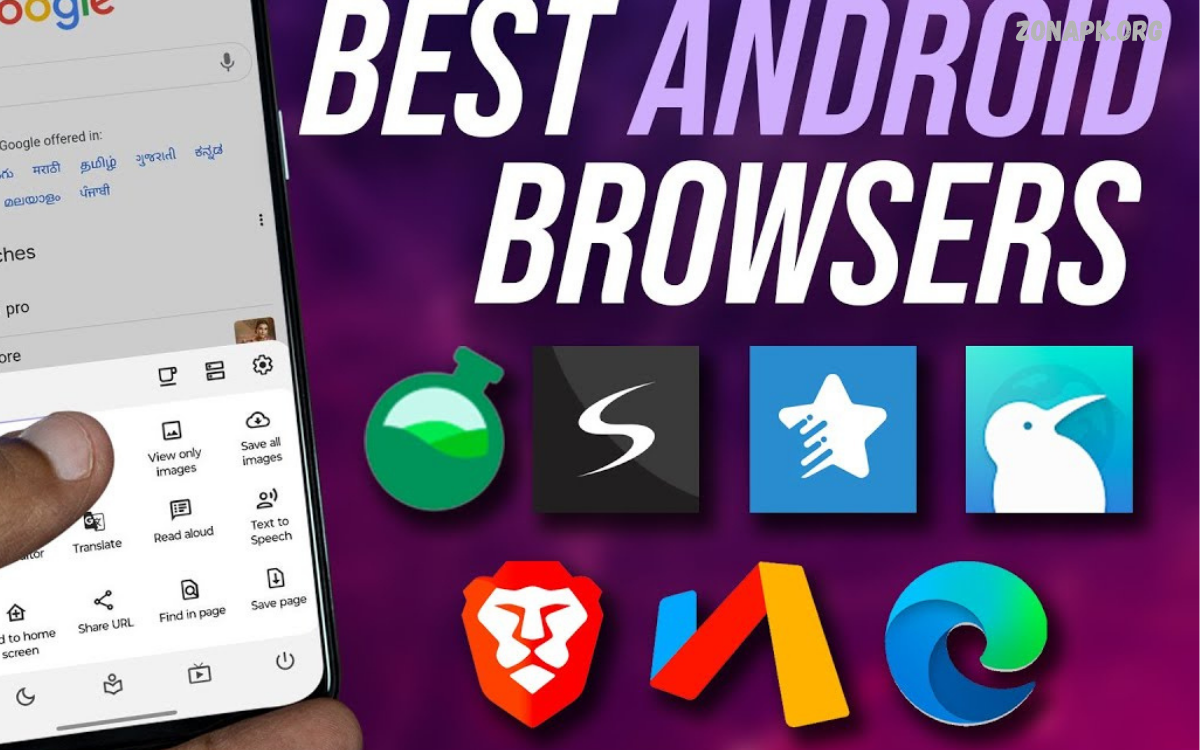
The Best Browser Apps for Android help users explore websites, read online content, watch videos, and access web applications directly from smartphones. A reliable browser offers fast loading, a simple interface, useful customization options, and security features that improve the browsing experience.
Android users can choose from several popular browsers, including Google Chrome, Mozilla Firefox, Microsoft Edge, Brave, Opera, and Samsung Internet. Each browser offers different features, privacy controls, and synchronization options.
What Are Browser Apps for Android?
Browser apps for Android let smartphones and tablets access websites and online services. They interpret website content and display text, images, videos, interactive features, and downloadable resources.
A good Android browser combines performance, usability, and security in one application. Some browsers integrate closely with Google services, while others focus on tracking protection, customization, or productivity tools.
Google Chrome for Android
Google Chrome is one of the most widely used browser apps for Android, offering a familiar interface and integration with Google services. Users can synchronize bookmarks, browsing history, passwords, and open tabs across supported devices when signed into the appropriate account. Chrome also provides tab management, translation features, and security updates that support everyday browsing.
Chrome may suit users who frequently use Gmail, Google Drive, Google Search, and other Google services. Its interface is straightforward, making website navigation convenient for beginners and experienced users. However, users concerned about privacy should review account synchronization, site permissions, and privacy settings to understand how their browsing information is handled.
Mozilla Firefox for Android
Mozilla Firefox is a popular Android browser known for customization options and privacy-focused features. Depending on the current version, users can access tracking protection, extensions, private browsing, and synchronization through a Firefox account. These features make Firefox an appealing choice for people who want more control over their browsing environment.
Firefox can suit users who prefer an open-source browser ecosystem and additional flexibility. Supported extensions may help improve productivity, manage passwords, or customize the browsing experience. Extension availability can differ from desktop Firefox, so users should check the Android version before relying on a particular add-on.
Microsoft Edge for Android
Microsoft Edge offers Android users a browser with integration across Microsoft’s software ecosystem. Depending on the current version and region, features may include synchronization, tracking prevention, reading tools, translation, and productivity integrations. Users who work with Microsoft accounts and services may appreciate having bookmarks and other supported information available across devices.
Edge can be useful for students, professionals, and people who regularly use Microsoft 365 or Windows computers. Its additional features can simplify everyday tasks, although the available tools may vary by device and account. Review privacy settings, optional services, and synchronization preferences to ensure the browser fits your requirements.
Brave Browser for Android
Brave is an Android browser that emphasizes privacy and reduced online tracking. Its built-in Shields feature can block many advertisements and trackers, depending on the website and configuration. Reducing certain unwanted page elements may improve browsing convenience and sometimes help websites load more efficiently.
Brave may appeal to users who want privacy controls without installing numerous additional extensions. However, some websites may not function correctly when aggressive blocking is enabled. Users can adjust site-specific settings when necessary and should remember that blocking advertisements does not guarantee complete anonymity or eliminate every online security risk.
Opera Browser for Android
Opera provides an Android browsing experience with features designed to improve convenience and accessibility. Depending on the version, the application may include an integrated ad blocker, data-saving tools, a customizable start page, and news recommendations. These options let users personalize the browser for everyday internet use.
Opera may suit people who prefer built-in tools over installing separate apps for common browsing tasks. However, users should review the privacy policy and permissions for any optional features. If you’re considering a VPN-related feature, verify its exact functionality because browser-based protection may cover only browser traffic, not all internet activity on the Android device.
Samsung Internet Browser
Samsung Internet is a browser designed for Android devices and particularly well integrated with Samsung Galaxy smartphones and tablets. Features may include customizable toolbars, tab management, privacy controls, content-blocking support, and convenient browsing settings. The interface offers a mobile-focused experience that makes navigation comfortable on smartphone screens.
Samsung Internet is worth considering for Galaxy users who prefer a browser designed around their device ecosystem. Compatibility and feature availability depend on the Android version and hardware. Users with other Android devices should check Google Play for current compatibility before choosing it as their primary browser.
DuckDuckGo Browser for Android
DuckDuckGo’s Android browser focuses on privacy and offers tools intended to limit online tracking. Depending on the version, users may find tracker protection, private search integration, and controls to clear browsing data. These features provide a convenient way to manage certain aspects of online privacy without navigating complicated settings.
DuckDuckGo may suit users who want a straightforward browsing experience with privacy features enabled by default. However, private browsing does not make a user completely anonymous, and websites may still collect information through account logins or other techniques. Review the browser’s current capabilities and understand the limits of its privacy protections before relying on them for sensitive activities.
Vivaldi Browser for Android
Vivaldi is a customizable browser that provides Android users with several options for organizing and personalizing their browsing experience. Features may include tab management, bookmarks, notes, themes, and synchronization across supported devices. Its design appeals to users who prefer greater control over browser appearance and organization.
Vivaldi may be especially useful for people who frequently manage many websites or prefer a customized interface. Its range of settings can take some time to explore, particularly for users who want a minimal browsing experience. Check the current Android release to confirm that the features you need are available on your device.
Which Android Browser Offers the Best Speed?
Browser speed depends on several factors, including the device’s processor, available memory, internet connection, website design, and browser version. Chrome, Firefox, Edge, Brave, Opera, and other established browsers can all deliver responsive performance on compatible Android devices. Differences become more noticeable when browsing complex websites, managing numerous tabs, or using content-blocking features.
For a practical comparison, test several browsers using the same websites and network connection. Observe page loading, scrolling, video playback, and responsiveness during everyday tasks. Keep the browser updated and close unnecessary tabs when memory becomes limited. Rather than relying exclusively on benchmark scores, choose the browser that feels stable and responsive on your own device.
Best Browser Apps for Android for Privacy
Privacy-focused browsers provide features designed to reduce tracking and give users more control over personal information. Brave and DuckDuckGo emphasize built-in privacy tools, while Firefox offers tracking protection and customization. Other browsers also provide privacy settings, but the default configuration and available controls differ between applications.
No browser can eliminate every form of online tracking. Websites may recognize users through account logins, cookies, browser characteristics, and information voluntarily shared online. Users should review site permissions, limit unnecessary data sharing, and keep applications updated. Choosing a privacy-focused browser can help, but safe browsing habits remain essential.
Best Browser Apps for Android for Security
A secure Android browser helps protect users against certain online threats through security updates, dangerous-site warnings, and controls for downloads and permissions. Chrome, Firefox, Edge, Brave, and other reputable browsers provide different combinations of security features. Users should review the latest documentation to understand what each application offers.
Browser security also depends on user behavior. Avoid downloading unfamiliar APK files, entering passwords on suspicious websites, or granting unnecessary permissions. Use strong passwords and multifactor authentication for important accounts. Keeping Android and browser software updated helps address known vulnerabilities and improves protection against emerging threats.
Best Browser Apps for Android With Ad Blocking
Some Android browsers include built-in advertisement or tracker blocking features. Brave and certain Opera configurations offer integrated blocking tools, while Firefox may support compatible extensions or other privacy controls. These features can reduce some unwanted page elements and may improve readability on advertisement-heavy websites.
Ad blocking does not remove every advertisement, and some websites may limit functionality when content blockers are active. Users should review available settings and allow trusted websites when appropriate. Download browser applications and extensions from reputable sources, and avoid tools that request excessive permissions or make unrealistic privacy promises.
Best Browser Apps for Android for Students
Students need browsers that make research, reading, online classes, and document access convenient. Chrome can integrate with Google services, while Edge supports Microsoft’s ecosystem and Firefox provides customization options. Features such as bookmarks, tab management, translation, and synchronization can help students organize research and move between devices.
Choosing a student-friendly browser also involves considering privacy and distraction management. Review permissions before accessing school accounts, avoid saving passwords on shared devices, and sign out when using public computers or borrowed phones. Organizing important websites into bookmarks can save time and make online study sessions more efficient.
Best Browser Apps for Android for Professionals
Professionals often need a browser that supports email, online meetings, cloud storage, business dashboards, and document management. Chrome and Edge can be convenient for users working within Google or Microsoft services, while Firefox and Vivaldi provide alternatives with different customization options. Synchronization can help maintain access to important bookmarks across supported devices.
For work-related browsing, prioritize security. Use approved applications when handling company information and follow workplace policies for account access and data storage. Avoid installing unverified extensions, especially on devices used for sensitive work. A browser’s compatibility with essential business tools may matter more than having the most additional features.
Read Also: Best VPN Apps for Android: Top Choices for Privacy, Security, and Fast Browsing
Best Browser Apps for Android for Video Streaming
Android browsers let users access video platforms, streaming websites, and embedded media without installing a separate app for every service. Chrome, Samsung Internet, Firefox, and other modern browsers support many common web video formats. Playback quality depends on the website, device hardware, internet speed, and the browser’s compatibility with the media player.
For a smoother viewing experience, use a stable connection and keep the browser updated. Close unnecessary tabs or applications if the device struggles with playback. Some streaming services work better through their official Android apps, so compare both options when appropriate. A browser cannot guarantee access to content restricted by subscriptions, regional availability, or platform policies.
Best Browser Apps for Android for Downloading Files
A useful Android browser makes it easy to download documents, images, and other permitted files from trusted websites. Most established browsers include download management features that let users monitor progress and open saved files. The interface and available controls vary by browser and Android version.
Security matters when downloading files from the internet. Verify the website before downloading, avoid suspicious APK files, and do not open unexpected attachments. Review Android’s download permissions and storage settings when necessary. A reputable browser can provide helpful security warnings, but users should not treat those warnings as a guarantee that every downloaded file is safe.
How to Choose the Best Browser App for Android
Start by identifying the features that matter most to your everyday browsing. Users who depend on Google services may prefer Chrome, while privacy-conscious users may consider Brave, Firefox, or DuckDuckGo. Samsung Galaxy owners may appreciate Samsung Internet, and users who need extensive customization may prefer Vivaldi.
Next, consider performance, device compatibility, synchronization, extension support, and privacy settings. Read the app’s current description and privacy policy before installing it. Try two or three reputable browsers if you are unsure which one works best. The ideal browser should provide dependable performance, straightforward navigation, and the features you genuinely need.
How to Install a Browser on Android
Installing a browser on Android is straightforward. Open Google Play, search for the browser’s official app, verify the developer, then tap Install. If the browser is already included on your device, you can open it directly or update it through the appropriate app store.
After installation, open the browser and review its initial settings. Choose whether to synchronize bookmarks or sign into an account, depending on your preferences. Check privacy controls, notification permissions, default search settings, and download options. Careful setup can create a more convenient experience while reducing unnecessary data sharing.
How to Make Android Browsing Faster
Several simple adjustments can improve the browsing experience on an Android smartphone. Keep the browser updated, close tabs that are no longer needed, and maintain enough free storage for normal device operation. If pages load slowly, compare Wi-Fi and mobile data to see whether the problem is the network rather than the browser.
Browser extensions, content blockers, and background applications can affect performance differently across devices. Disable unnecessary extensions or features when troubleshooting persistent problems. Restarting the browser may also help resolve temporary issues. Avoid apps that promise unrealistic speed improvements, and don’t clear important browser data unless you understand that saved sessions or preferences may be removed.
Common Mistakes to Avoid When Using Android Browsers
One common mistake is installing browser applications from unknown websites. Unofficial or modified applications can contain unwanted software or request unnecessary access to personal information. Download browsers from Google Play or the developer’s verified website, and review the publisher before installing an app.
Another mistake is assuming that incognito mode provides complete anonymity. Private browsing generally limits what the browser saves locally after a session, but it doesn’t automatically hide activity from websites, network operators, or every tracking system. Use appropriate privacy controls, sign out of accounts on shared devices, and avoid entering sensitive information on untrusted websites.
Frequently Asked Questions
Which browser is best for Android?
The best browser depends on individual needs. Chrome offers Google integration, Firefox provides customization, Brave emphasizes tracking protection, and Edge supports Microsoft’s ecosystem. Samsung Internet is another option for compatible devices. Compare privacy features, performance, and compatibility before choosing.
Which Android browser is best for privacy?
Brave, DuckDuckGo, and Firefox are worth considering for their privacy-focused features. However, their protections differ, and no browser prevents every tracking method. Review current privacy policies, settings, and available independent assessments before making a decision.
Is Google Chrome good for Android?
Yes, Chrome is a capable Android browser with synchronization, tab management, translation, and integration with Google services. It suits users who want a familiar interface and access to Google tools. Review privacy settings if you want greater control over data collection and synchronization.
Which Android browser has built-in ad blocking?
Brave includes its Shields content-blocking features, while certain Opera versions offer integrated ad blocking. Other browsers may support extensions or additional privacy controls. Availability and behavior can vary by version and website.
Are free browser apps safe?
Many established browsers are free to install and use. However, users should verify the developer, examine permissions, and review the privacy policy. Avoid unknown browsers that request unnecessary access or make unrealistic security promises.
Can I use multiple browsers on Android?
Yes, Android supports installing and using multiple compatible browsers. You can choose one as the default and open specific websites in another when useful. This approach can help separate work, personal browsing, and testing activities.
Does incognito mode hide browsing history completely?
Incognito mode generally prevents the browser from saving session history locally after the private session ends. It does not guarantee anonymity or prevent all tracking by websites and network operators. You may still need other privacy measures.
How can I change my default browser on Android?
Open Android Settings and go to Apps or Default apps. Select the browser option and choose your preferred installed browser. Menu names may differ depending on your Android version and device manufacturer.
Conclusion
The Best Browser Apps for Android offer a combination of speed, usability, privacy controls, and useful features for everyday internet access. Chrome, Firefox, Edge, Brave, Opera, Samsung Internet, DuckDuckGo, and Vivaldi each provide different advantages.
Before choosing a browser, consider its security updates, privacy policy, compatibility, and available tools. Keep the application updated, review permissions, and download files only from trusted sources.

1 Comment
Pingback: Best Password Manager Apps: Top Tools for Online Security and Password Protection - Zonapk