

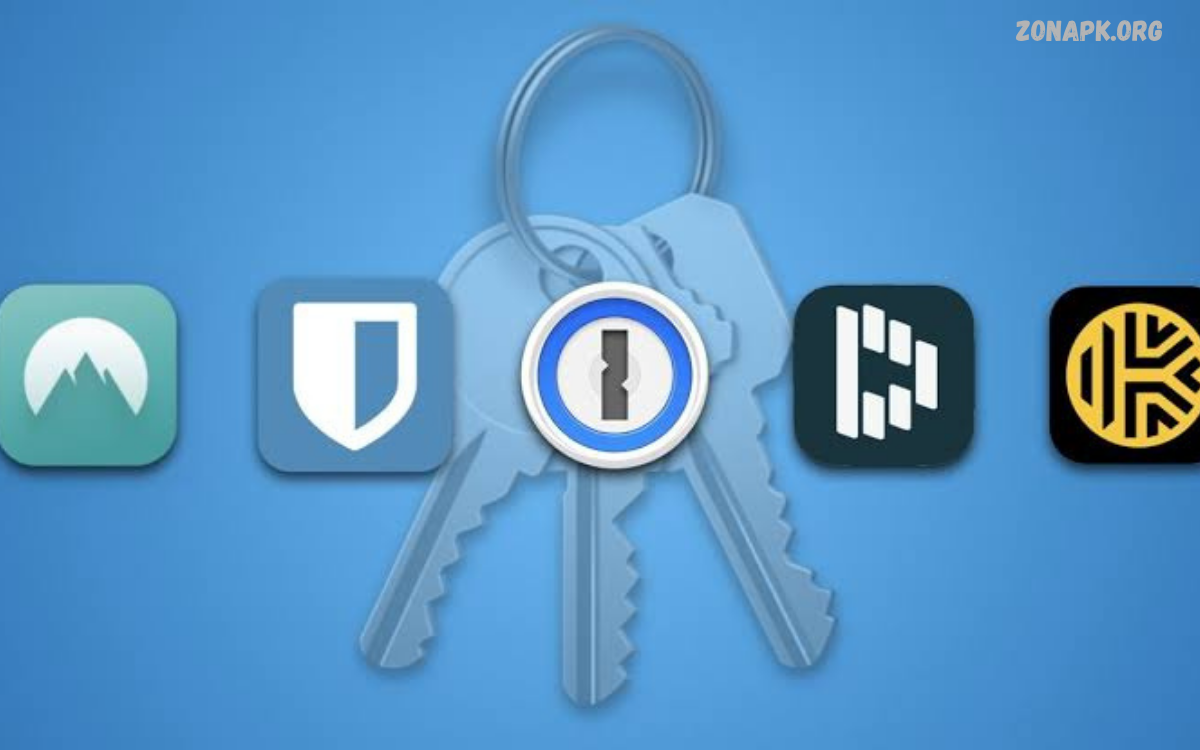
Best Password Manager Apps help users securely store passwords, create strong login credentials, and manage online accounts from one place. Instead of remembering dozens of passwords, users can rely on an encrypted vault to organize their credentials.
Online accounts contain valuable information, including emails, social media profiles, shopping details, and personal documents. Reusing passwords across multiple websites can increase security risks when one service experiences a data breach.
What Are Password Manager Apps?
Password manager apps are software tools that securely store, organize, and retrieve login credentials. Most offer an encrypted vault that protects saved passwords behind a master password, biometric authentication, or another supported unlocking method. Depending on the service, users can also store secure notes, payment details, addresses, and other private information.
Many password managers include browser extensions, mobile applications, and automatic form-filling features. These tools can recognize login pages, suggest saved credentials, and generate strong passwords during account registration. Some services also support secure sharing, passkeys, password health reports, and synchronization across multiple devices, making account management easier.
Why Password Managers Are Important
Creating a different, strong password for every account is an important security practice. However, remembering numerous complex passwords can become difficult, especially for people who use many online services. A password manager addresses this challenge by securely storing credentials and retrieving them when needed, reducing the temptation to reuse simple passwords.
Password managers can also help users identify weak, reused, or potentially exposed passwords. Some services provide alerts when stored credentials appear in known data breaches, allowing users to take action. Although these features improve account protection, users should still enable multifactor authentication, install security updates, and remain cautious about suspicious links and fraudulent websites.
Best Password Manager Apps at a Glance
Several password managers offer useful features for different needs. Bitwarden appeals to users seeking an affordable service with open-source software, while 1Password provides a polished experience with security-focused features. Proton Pass emphasizes privacy, and Dashlane offers convenient password management tools alongside security monitoring on supported plans.
Other options include NordPass, Keeper, and the password managers built into Apple and Google ecosystems. Each service differs in pricing, device support, sharing features, recovery options, and premium capabilities. Before choosing an application, compare its security model, platform compatibility, independent security assessments, and free or paid plan limitations.
Bitwarden: A Flexible Password Manager
Bitwarden is a popular choice for users who want password management across computers, smartphones, and web browsers. Its open-source approach allows its code to be examined publicly, and its feature set includes encrypted password storage, password generation, autofill, and synchronization options. The service offers free and paid plans, with availability and features depending on the selected subscription.
Bitwarden can suit students, families, professionals, and users managing multiple online accounts. Its browser extensions and mobile apps make saved credentials accessible across supported platforms, while additional features can include secure sharing and organization tools. Users should review the current plan details and configure account recovery and multifactor authentication before storing important credentials.
1Password: Password Management for Everyday Use
1Password provides a polished password management experience with applications for supported computers, smartphones, and browsers. It offers encrypted storage, password generation, autofill, secure notes, and options for organizing information. Features such as Watchtower help users review account security issues, while its travel-related protections may be useful for eligible users who need additional control over selected vault information.
This service can be a strong option for individuals, families, and teams seeking convenient password organization. Shared vaults can help households or coworkers manage approved credentials without sending passwords through ordinary messages. Most full-featured subscriptions are paid, so users should compare current pricing, trial availability, device support, and sharing limits before committing to a plan.
Proton Pass: A Privacy-Focused Password Manager
Proton Pass is a password manager from Proton, a company known for privacy-focused digital services. It supports encrypted credential storage, password generation, autofill, and synchronization across supported platforms. Depending on the plan, users may also access email aliases, secure sharing, and other privacy-oriented features that help separate public-facing contact information from personal email addresses.
Proton Pass may appeal to users who value privacy and want password management within a broader security ecosystem. Email aliases can help reduce exposure of a primary email address when signing up for websites and newsletters. Users should compare free and paid plan limits, check supported devices, and enable available account protection features before moving existing passwords into the service.
Dashlane: Convenient Security Features
Dashlane combines password storage, password generation, autofill, and account security tools in an easy-to-use interface. Depending on the subscription and current product offering, users may receive alerts about exposed credentials, password health reports, secure sharing, or additional monitoring features. Its browser and mobile integrations can simplify login management for people who regularly access many websites.
Dashlane may suit users who prefer a guided experience with security information presented clearly. However, premium features and pricing can change, so checking the official plan comparison is important before subscribing. Users should also evaluate browser compatibility, supported operating systems, export options, and the process for recovering access if their primary authentication method becomes unavailable.
NordPass: Simple Password Storage
NordPass offers password storage, password generation, autofill, and synchronization across supported devices. It is designed to simplify account access while helping users create unique credentials for different websites. Depending on the plan, additional capabilities may include secure sharing, password health checks, and alerts related to exposed information or account security.
NordPass can be suitable for users who prefer a straightforward interface rather than a complicated set of configuration options. Its applications and extensions can support everyday browsing, shopping, and work-related account access. Before choosing a subscription, review its current free-plan restrictions, premium features, renewal terms, and supported devices to ensure the service matches your requirements.
Keeper Password Manager: Security for Individuals and Teams
Keeper provides encrypted password storage, password generation, autofill, and secure information management. It also offers business-focused administration and sharing features designed for organizations that need controlled access to credentials. Depending on the subscription, additional options may include secure file storage, monitoring tools, and administrative controls for managing users and permissions.
Keeper can be worth considering for professionals, households, and organizations with more advanced security requirements. Business administrators may benefit from centralized policies and access management, while individuals can use the vault to organize personal accounts. Compare the current subscription options carefully because some advanced features require separate plans or add-ons, and choose settings that balance convenience with appropriate protection.
Apple Passwords: Convenient for Apple Devices
Apple Passwords provides an integrated way to manage passwords, passkeys, verification codes, and supported Wi-Fi credentials across compatible Apple devices. Its integration with Apple’s operating systems can make autofill and account access convenient for users already working within the Apple ecosystem. Authentication options, including device passcodes and supported biometric methods, help control access to saved information.
Apple Passwords may be a practical option for iPhone, iPad, and Mac users who want built-in password management without installing a separate application. However, users who regularly switch between different operating systems should check cross-platform access and browser compatibility. People with complex sharing needs or specialized work requirements may prefer a dedicated password manager with broader organizational features.
Google Password Manager: A Practical Built-In Option
Google Password Manager helps users save passwords, generate stronger credentials, and autofill login forms through supported Google services and browsers. It is especially convenient for people who regularly use Chrome and Android devices. Depending on the account, browser, and device configuration, users can review saved credentials, check for certain security issues, and access passwords through supported synchronization features.
Google Password Manager can provide a simple starting point for people who do not need advanced vault organization or team-sharing tools. A dedicated password manager may offer more flexible sharing, specialized privacy features, or broader management options. Users should secure their Google Account with a strong password and multifactor authentication because account protection plays an important role in safeguarding synchronized information.
How to Choose the Best Password Manager Apps
Choosing among the best password manager apps begins with identifying your main requirements. Consider whether you need free password storage, synchronization across devices, secure sharing with family members, business administration, or privacy-focused tools. Check supported operating systems, browser extensions, import options, export capabilities, and whether important features are included in the free plan or require a subscription.
Security deserves more attention than the number of features offered. Review the provider’s encryption documentation, independent security assessments, authentication options, breach response practices, and account recovery process. A clear privacy policy and reliable software updates are also valuable. Select a service that you can use consistently, because a well-configured password manager is more useful than an advanced application that you rarely maintain.
Important Security Features to Look For
A trustworthy password manager should protect its vault using strong encryption and a carefully designed authentication system. It should support unique password generation, secure autofill, and synchronization that protects data during transfer and storage. Depending on your needs, useful additional features include passkey support, secure notes, encrypted attachments, password health checks, and controlled credential sharing.
Multifactor authentication adds another layer of protection when supported by the provider. Authenticator applications, security keys, and passkeys can help reduce reliance on passwords alone. Users should also investigate recovery options, emergency access features, and trusted-device controls. These details matter because account recovery must remain secure without making permanent loss of access unnecessarily likely.
Free vs. Paid Password Manager Apps
Free password managers can be enough for users who need basic password storage, password generation, and convenient access on their everyday devices. Some providers offer generous free plans, while others limit synchronization, sharing, storage, or advanced security reports. Built-in options from Apple and Google may also meet the needs of users who primarily use one ecosystem.
Paid password managers can provide expanded sharing features, family plans, business administration, extra storage, priority support, or advanced security monitoring. Paying for a subscription does not automatically make a service more secure than every free alternative. Compare the features you will genuinely use, review renewal prices, and avoid paying for tools that do not improve your security or daily workflow.
Password Managers for Students
Students often manage email accounts, learning platforms, cloud storage, research websites, and school applications. A password manager can keep these credentials organized while helping prevent password reuse across important accounts. A free plan may be sufficient for basic needs, provided it offers suitable security, reliable access, and support for the student’s everyday devices.
Students should choose an application that is easy to unlock, simple to update, and compatible with their browser and phone. A strong master password, multifactor authentication, and a recovery plan are especially important when coursework and school communication depend on online accounts. Avoid storing passwords in unprotected notes or sharing them through public computers and messaging groups.
Password Managers for Families
Families may need to manage shared streaming accounts, household services, shopping profiles, and emergency information. A family password manager can provide separate private vaults alongside shared vaults for credentials that household members genuinely need. Access controls help users share selected information without revealing every password in their personal collection.
Before choosing a family plan, examine the number of supported members, shared vault options, permissions, and recovery tools. Every family member should use an individual account when the service supports it, rather than sharing one master password. Parents and guardians can help younger family members learn safe login habits while respecting privacy and limiting shared access to necessary information.
Password Managers for Businesses
Businesses manage credentials for email systems, cloud platforms, financial tools, customer databases, and internal applications. Password reuse among employees can increase organizational risk, especially when staff change roles or leave the company. Business password managers help teams securely share approved credentials and control access based on job responsibilities.
Organizations should evaluate administrative controls, audit logs, onboarding and offboarding procedures, and integration with identity management systems. A company may also need single sign-on, role-based permissions, or secrets management for technical teams.
Read Also: Best Browser Apps for Android: Top Browsers for Speed, Privacy, and Security
How to Create a Strong Master Password
A master password protects access to a password manager, making it one of the most important credentials to secure. Choose a long, unique passphrase that is difficult to guess and has never been used for another account. A combination of unrelated words can be easier to remember than a short, complicated string, provided the resulting passphrase remains sufficiently strong.
Avoid names, birthdays, familiar quotations, predictable patterns, and information that others can easily discover. Follow the password manager’s current recommendations for length and complexity, and use a secure recovery method if available. Never share the master password casually, and consider using a supported hardware security key or another strong authentication method to add protection.
How to Set Up a Password Manager
Start by choosing a reputable password manager and downloading its application from the official website or a trusted app store. Create your account, establish a strong master password or supported authentication method, and enable multifactor authentication where available. Review recovery settings before importing credentials so you understand how to regain access if your primary device becomes unavailable.
Next, install the appropriate browser extension or mobile application and import existing passwords using the provider’s supported process. Check for duplicates, weak credentials, and outdated login information. Update important accounts with unique passwords, verify that autofill works correctly, and securely remove temporary export files after the import is complete.
How Password Managers Generate Strong Passwords
Password generators create random or pseudorandom strings using configurable settings such as length, numbers, symbols, and letter combinations. Longer, unpredictable passwords generally provide stronger resistance to guessing than short, familiar words. A password manager can generate a separate credential for every account, eliminating the need to invent and remember each password manually.
When using a generator, follow the website’s password requirements and select the greatest practical length supported by the service. Avoid modifying generated passwords into predictable patterns or reusing a password simply because it is convenient. If a website supports passkeys, consider using that option because passkeys can reduce dependence on traditional passwords and provide phishing-resistant authentication when implemented correctly.
Password Managers and Passkeys
Passkeys are modern authentication credentials designed to let users sign in without entering a traditional password. They rely on public-key cryptography and are typically unlocked through a supported device authentication method. Because the private credential is not entered into a website’s login form, passkeys can help protect against many common password phishing attacks.
Many password managers now support storing or managing passkeys, although availability varies by provider and platform. Users should check synchronization, device compatibility, backup arrangements, and recovery options before relying on passkeys for important accounts. Password managers and passkeys can work together, offering a practical transition from traditional credentials toward more secure authentication methods.
Common Password Manager Mistakes to Avoid
One common mistake is choosing a weak master password or reusing it elsewhere. Another is ignoring security alerts, delaying updates, or leaving important accounts without multifactor authentication. Users should also avoid installing fake password manager applications, approving unexpected login requests, and entering credentials into websites without checking the domain carefully.
A password manager cannot eliminate every online threat. Malware, compromised devices, fraudulent websites, and unsafe account recovery settings can still expose information. Protect your devices with current security updates, lock screens when not in use, verify sensitive login requests, and regularly review access to important accounts. Use secure sharing tools instead of sending passwords through ordinary email or public chats.
How to Migrate Between Password Managers
Changing password managers can be useful when your needs, devices, or subscription preferences change. Before migrating, confirm that the new provider supports the platforms and features you depend on. Use the official import process where possible, and check whether passwords, passkeys, secure notes, attachments, and shared vault information can all be transferred.
Password exports may be stored in readable formats, so handle them carefully. Perform the migration on a trusted device, keep temporary files protected, verify the imported records, and delete exposed temporary copies when the process is complete. Do not cancel the old service until you have confirmed that important credentials are accessible and that the new vault is backed up or recoverable.
Privacy and Data Protection Considerations
A password manager may store highly sensitive information, so its privacy and data protection practices deserve careful review. Understand what information the provider collects, how synchronization works, which services process your data, and what happens if you close your account. End-to-end encryption and a zero-knowledge design can help limit provider access to vault contents, but implementations and supporting features differ.
Read the provider’s privacy policy and security documentation rather than relying only on marketing claims. Consider independent audits, vulnerability disclosure programs, software update practices, and public explanations of past security incidents. No service can guarantee perfect protection, so combine a reputable password manager with strong authentication, secure devices, and sensible account recovery arrangements.
Frequently Asked Questions
Which password manager app is best?
The best option depends on your needs. Bitwarden is worth considering for its free offering and open-source approach, while 1Password offers polished individual and family experiences. Proton Pass emphasizes privacy, and Apple Passwords or Google Password Manager can work well for users who prefer built-in tools. Compare current security features, pricing, and device compatibility before deciding.
Are password manager apps safe?
Reputable password managers use encryption and other security controls to protect saved credentials. However, safety also depends on the provider’s implementation, your master password, authentication settings, and device security. Choose a service with transparent security documentation, enable multifactor authentication, keep software updated, and remain alert to phishing attempts.
Are free password managers good enough?
Free password managers can meet many everyday needs, including storing passwords and generating unique credentials. Their limitations vary by provider and may affect device synchronization, sharing, or advanced features. Review the current plan details and select a free service that meets your requirements without compromising essential security practices.
Should I save all my passwords in one app?
Using a reputable password manager for most website credentials can reduce password reuse and simplify account management. Protect the vault with strong authentication and maintain a secure recovery plan. For especially sensitive accounts, review additional protection options such as passkeys, security keys, and account-specific multifactor authentication.
Can password managers be hacked?
No digital service is completely immune to security incidents. Attackers may target providers, users’ devices, or individual accounts, and weaknesses can exist in software or recovery processes. A well-designed password manager can still improve security significantly when combined with a strong master password, multifactor authentication, current software, and careful browsing habits.
Do password managers work on phones and computers?
Many dedicated password managers support Android, iOS, Windows, macOS, and major browsers, but exact compatibility varies. Built-in services may work best within their respective ecosystems. Check the provider’s current platform list before subscribing, particularly if you regularly switch between different devices or operating systems.
What is the difference between a password manager and a browser’s password storage?
Browser-based password storage offers convenient credential saving and autofill, often with synchronization through an associated account. Dedicated password managers may provide broader vault organization, secure sharing, advanced security reports, or support for multiple ecosystems. The best choice depends on your workflow and the features required to manage your accounts safely.
Should I use a password manager with passkeys?
Yes, using a password manager that supports passkeys can be convenient if its implementation matches your needs. Passkeys can provide phishing-resistant sign-in and reduce reliance on traditional passwords. Before adopting them for important accounts, confirm device support, synchronization behavior, and recovery options so you do not lose access when replacing a device.
Conclusion
The best password manager apps make it easier to maintain unique credentials, organize online accounts, and reduce the risks associated with weak or reused passwords. Bitwarden, 1Password, Proton Pass, Dashlane, NordPass, and Keeper offer dedicated management features, while Apple Passwords and Google Password Manager provide convenient built-in alternatives.
Start by selecting a trustworthy option, creating a strong master password, enabling multifactor authentication, and securing your most important accounts. Gradually replace reused passwords with unique, generated credentials, and use passkeys wherever supported.

1 Comment
Pingback: Best Weather Apps: Top Apps for Accurate Forecasts - Zonapk